
Guide QR links, saved in Slate
Guidebook stores each guide's QR code link on its Slate event, and on each session synced from Slate, ready to use in your communications.



Share the guide from where you already send.
The link lives on the Slate event, so your team can add it without copying it out of Builder:
- Registration confirmations and reminders
- Event pages
- Printed materials
What goes to Slate
Two fields on each Slate event, and nothing about students.
Good to know
How the link behaves, and what stays in your control.
Setting it up
Your Slate admin prepares Slate, then a Builder organization admin connects it.
Prerequisites:
Before you can set up the Slate Guide QR Code integration within Guidebook Builder, you will need the following:
From Slate: A Guide QR Codes Dataset, Source format and Query imported via a Guidebook provided suitcase and a service account with credentials.
AND
From Guidebook: An Event & Session Data Connection from the same instance you are configuring, see above sections for details. No Person Data Connection is needed, since no student data is sent.
Slate Configuration (Building a Query Web Service in Slate)
In Slate, you will need to import one Suitcase for the Guide QR Codes Dataset, Source Format and Query.
-
Get the Guidebook Guide QR Code Suitcase ID from your Guidebook contact. Import this suitcase via the Database “Suitcase Import”. At time of writing:
cb70ba0c-6c16-45b3-9a38-9e7bcee72c5a:gdb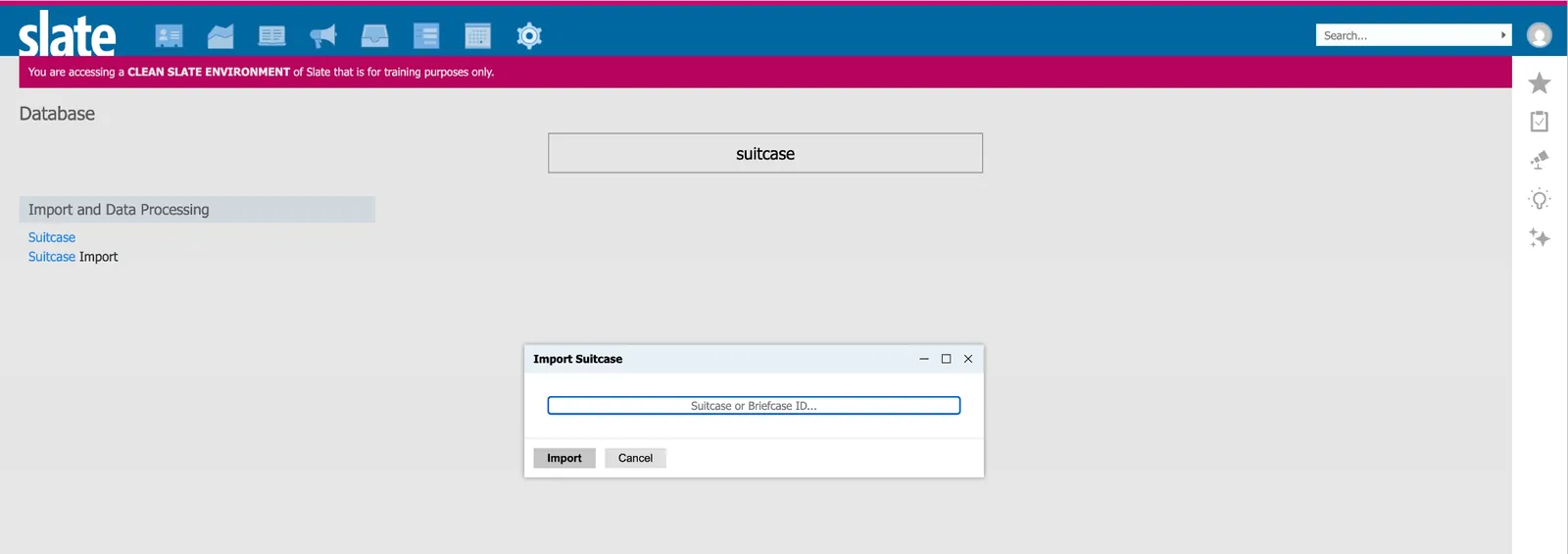
-
Please select “Import” and choose the New Names for the Dataset, the Source format and the Query
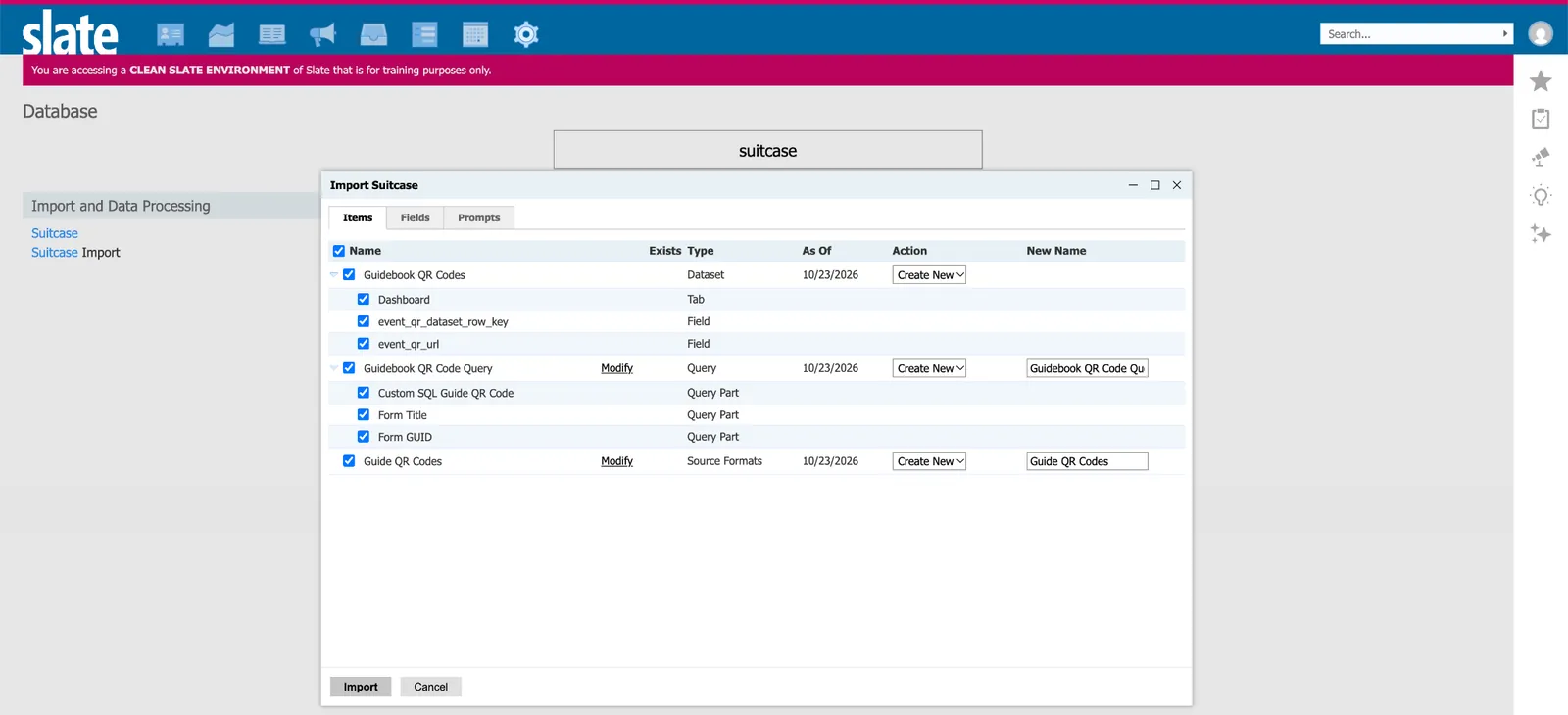
-
Validate success by locating the Source format you imported in the list of Source formats. If its Status shows Inactive, choose “Edit” and set the Status to Active so posts from Guidebook are imported. You may see an initial empty post which was used to test the connection:

-
We will now have to Refresh the Configurable Joins Library, do so by searching “Refresh Configurable Joins Library”, press “OK”. This will surface the new Dataset fields as destinations for the field mappings in the next step.

-
This Suitcase/Source format comes with a set of predefined field mappings:
form_ididentifies the Slate event (Form) andguide_qr_urlholds the guide's QR code link. Only remap these if you are confident about what this implies about the data flow. If the destinations appear blank, make sure the Configurable Joins Library was refreshed in step 4.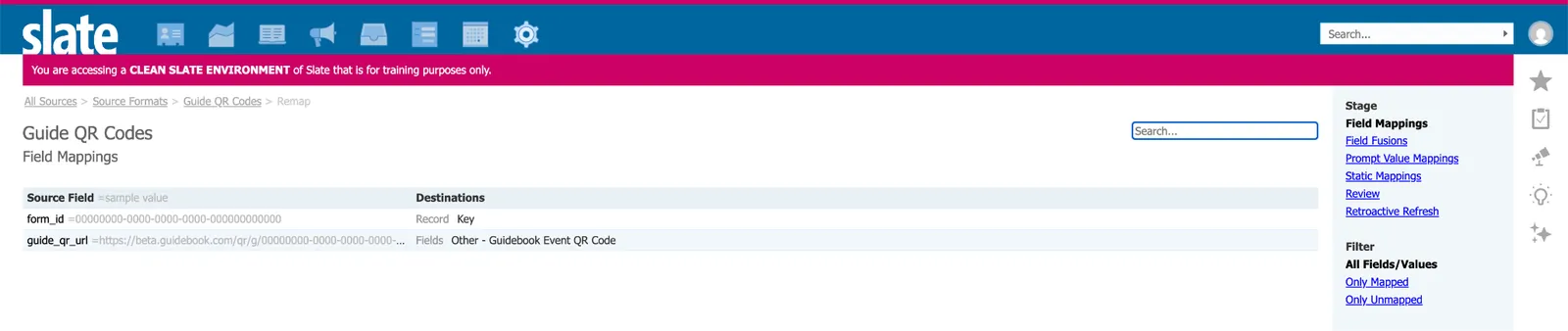
-
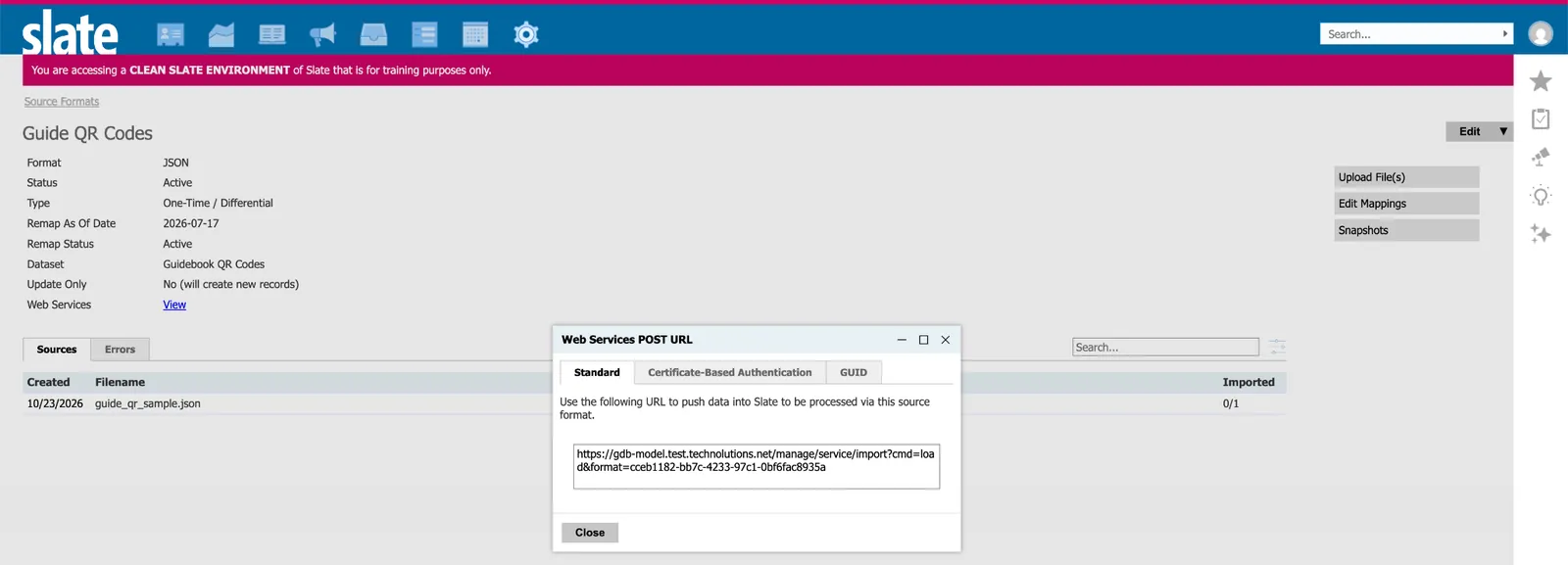
Back on the Source Format, click “View” next to Web Service to collect the Webservice URL, this will be needed later in the Builder configuration, please save it.
-
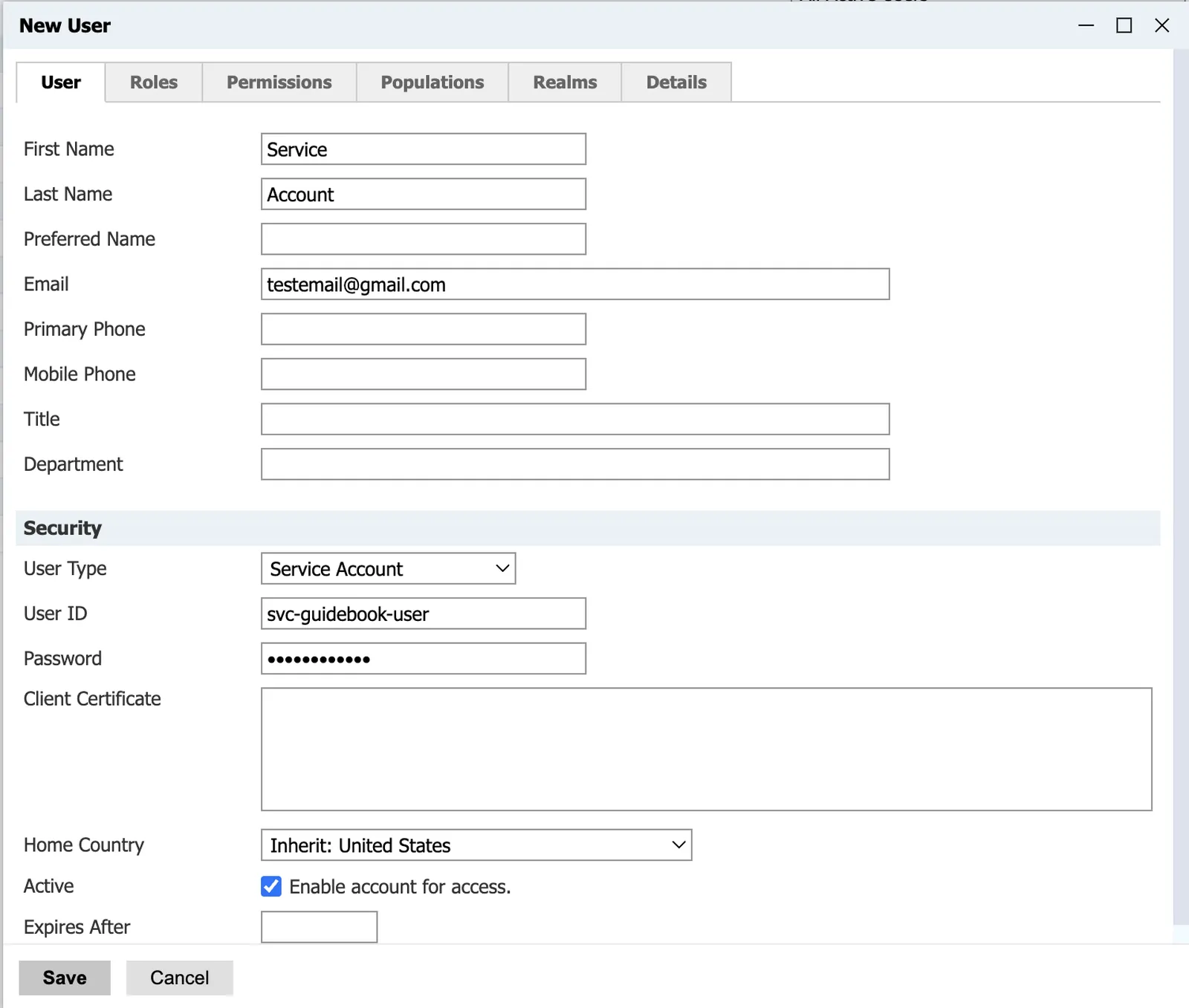
Next we will need to create/collect the credentials for a Slate Service account, click “New User” in the User Permissions tab. *NOTE* If you have already created the service account as per the App Usage Data or Attendance Data instructions above, steps 7-9 are not necessary:

-
Fill out the following fields to create a Service User Account, please record the username and password as they will be used in Guidebook Builder. Note that if you select an expiry date you will have to re-do parts of this process once it expires.
-
A successful account creation will look like the below:

-
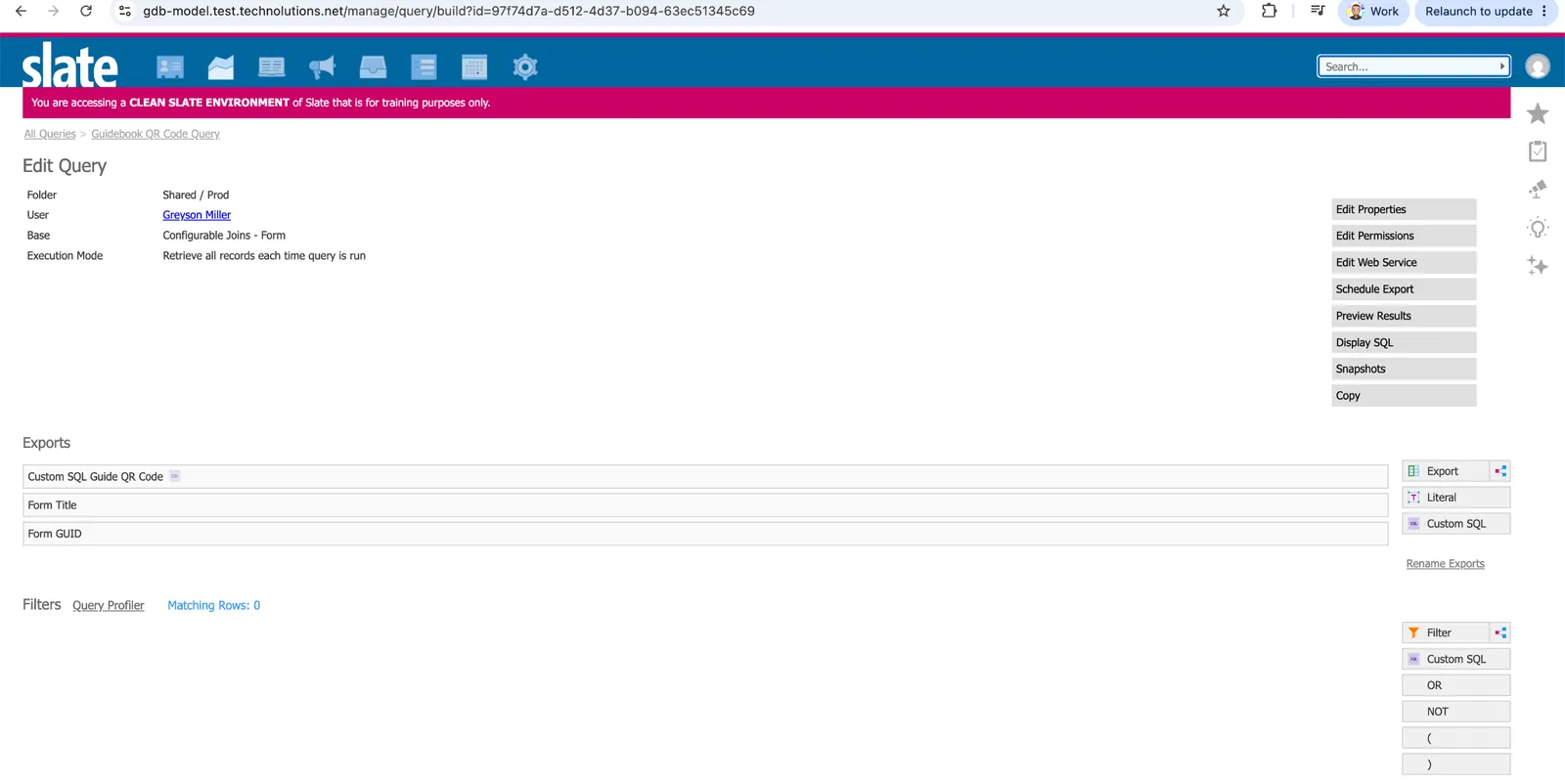
The Suitcase also includes a Query over Forms that exports each event's Guide QR code link from the Dataset. Once Guidebook has sent data, run it to confirm each linked event shows its link:
Setting Up the Slate Guide QR Code Integration in Guidebook Builder
Now that you have your Slate web service URL, log in to Builder and open your guide's Integrations settings.
-
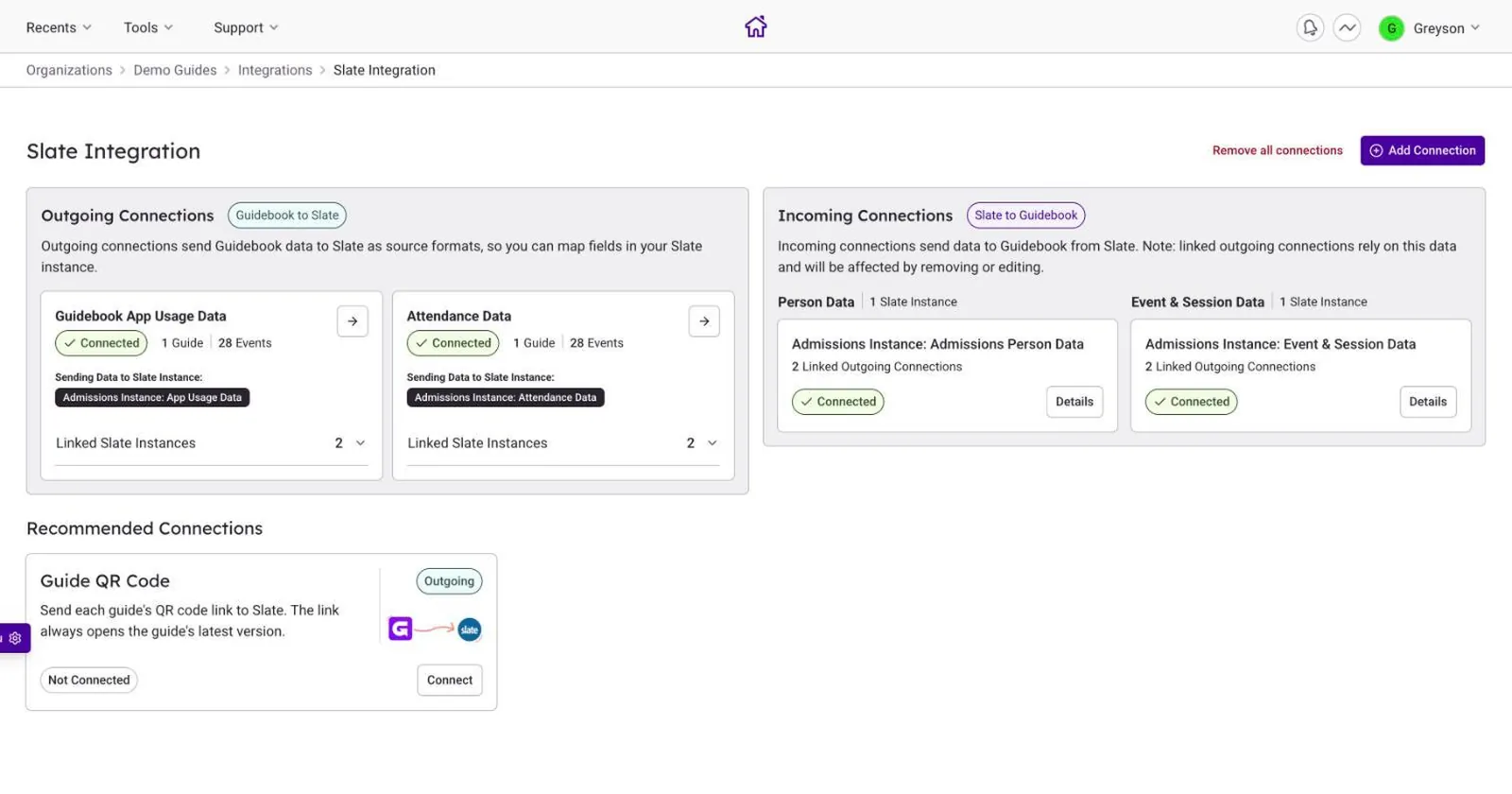
Find the Slate integration in your Organizations “Integrations” tab and click Set up. Choose Guide QR Code, and press “Connect”
-
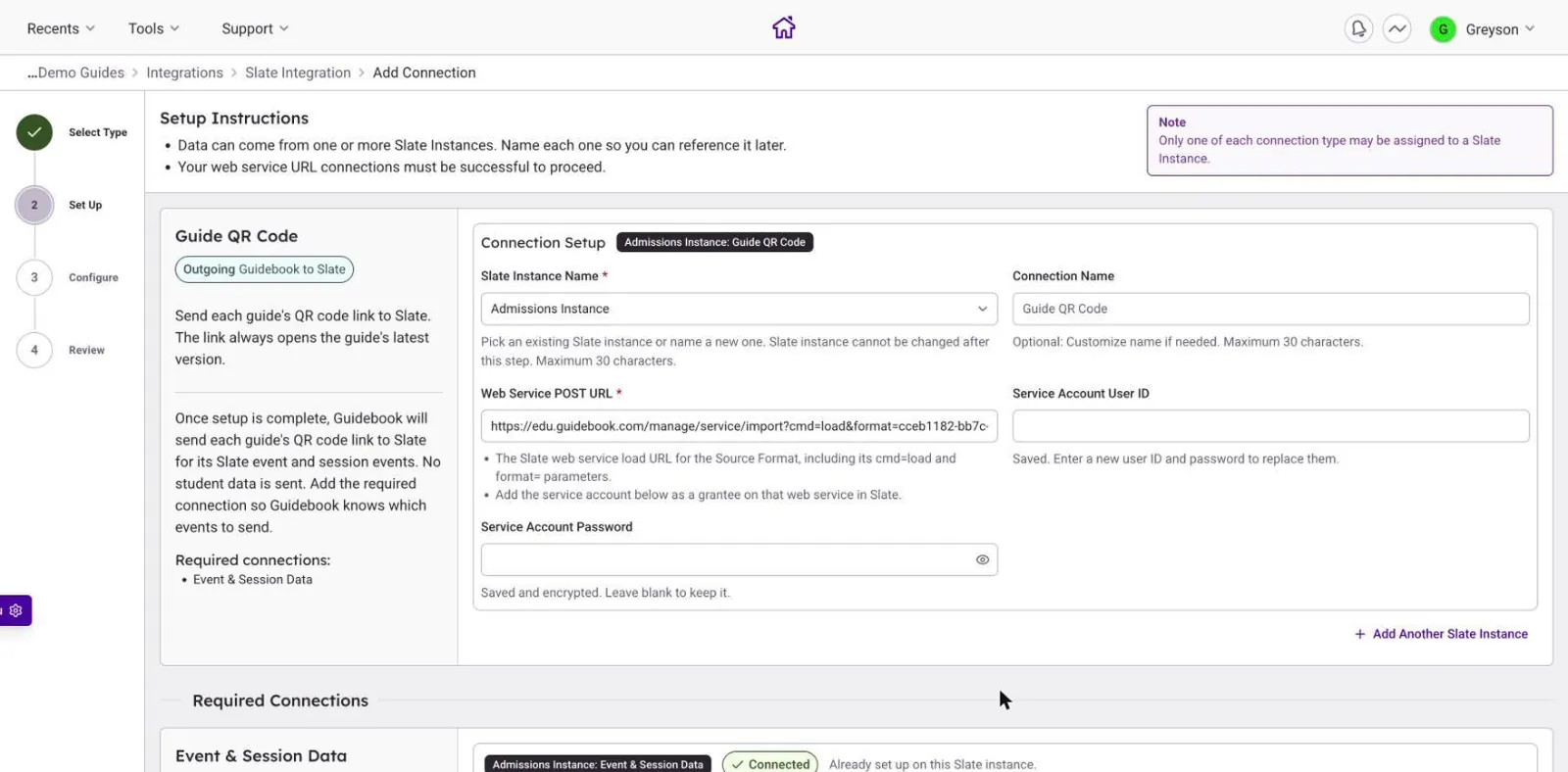
Paste in your Web service URL. Include the Service account username and password you noted earlier (DO NOT include your personal Slate account login credentials, this will not work)
-
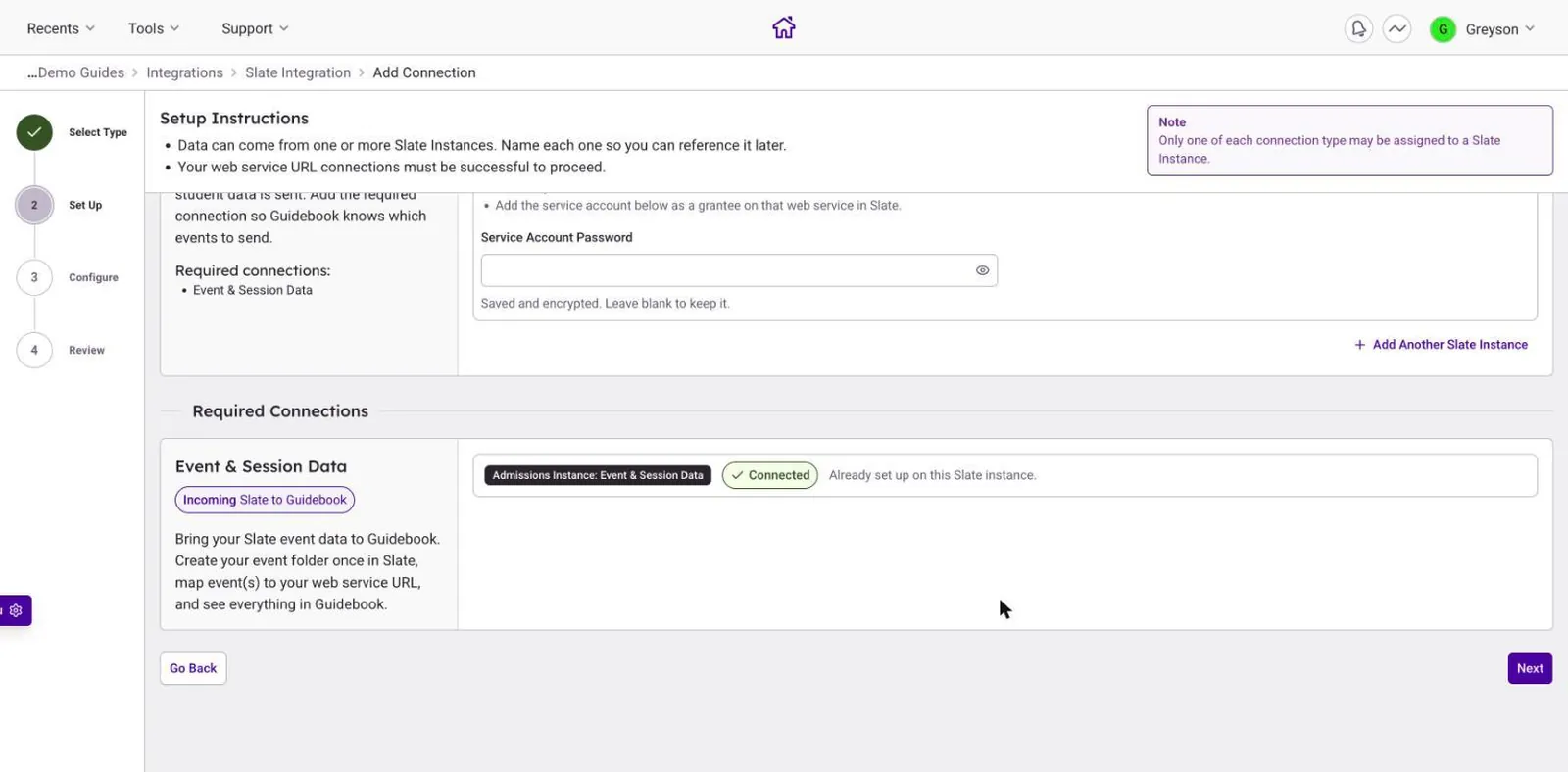
Please ensure that the Event & Session Data dependency is connected and functional as below:
-
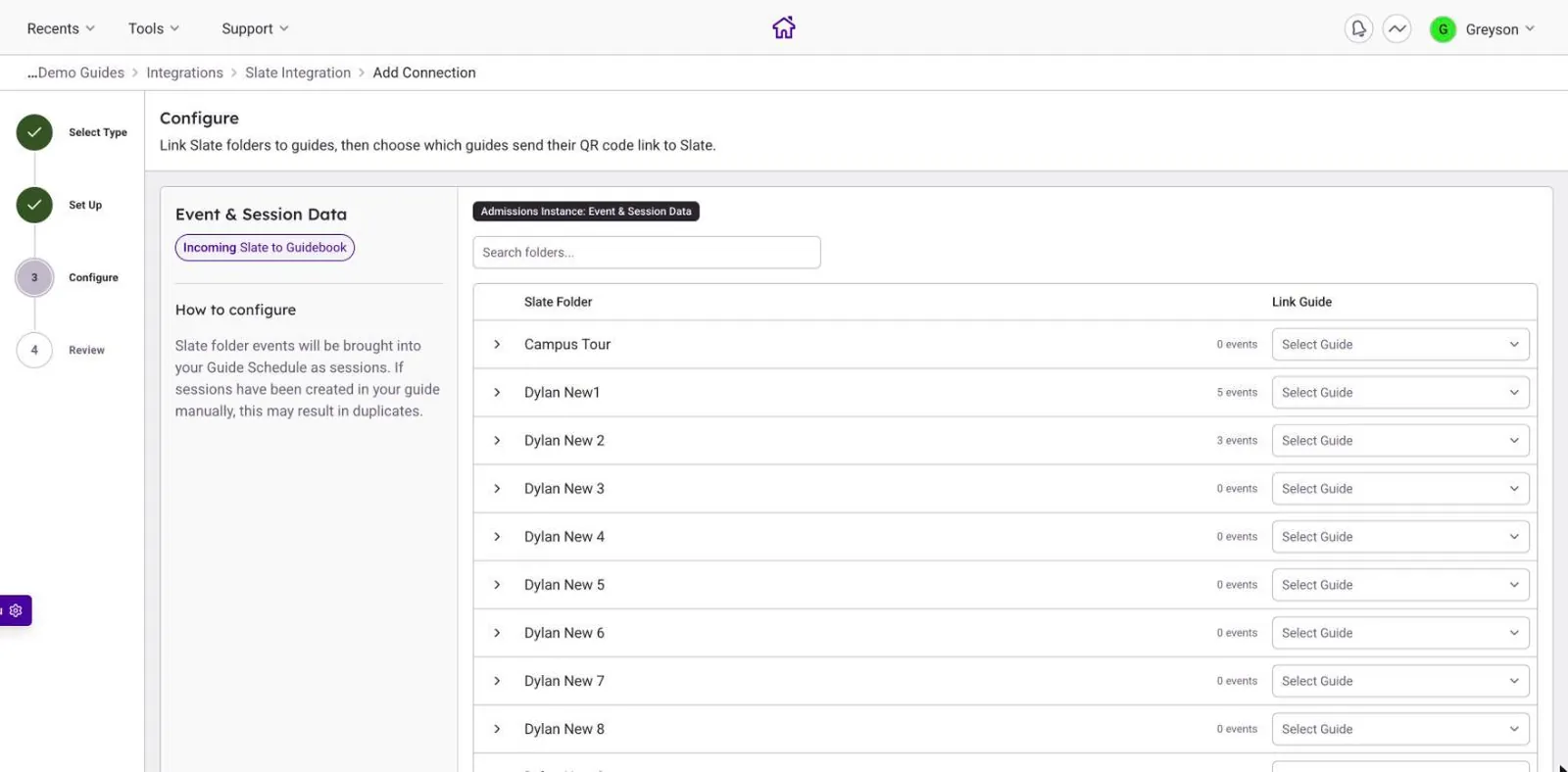
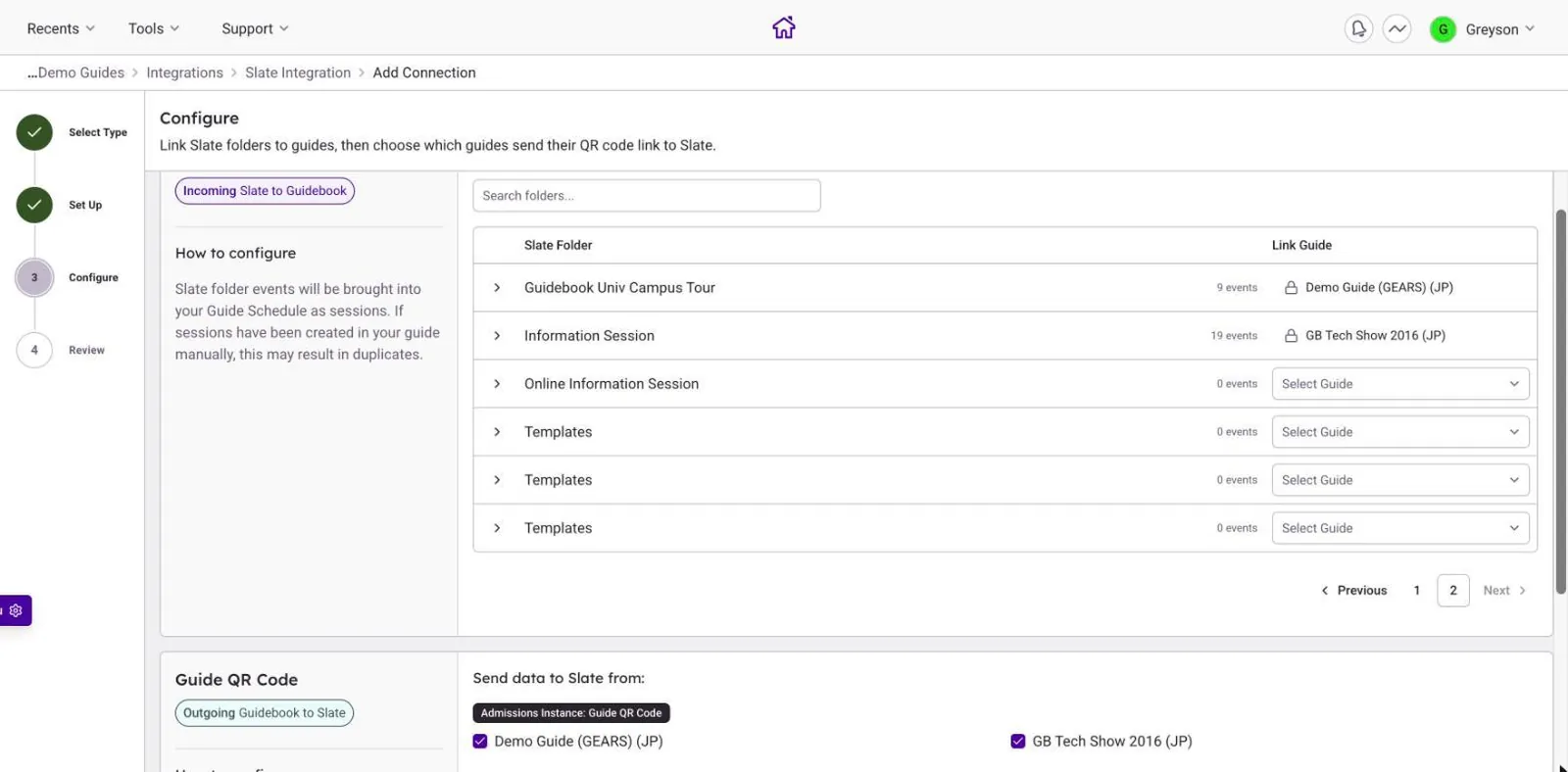
Ensure that the Event & Session Data Connection has the mappings you want and expect for the Guide QR Code Integration. Only guides linked to a Slate folder can send their QR code link. Note that changing any mapping here changes the underlying map on that connection:
-
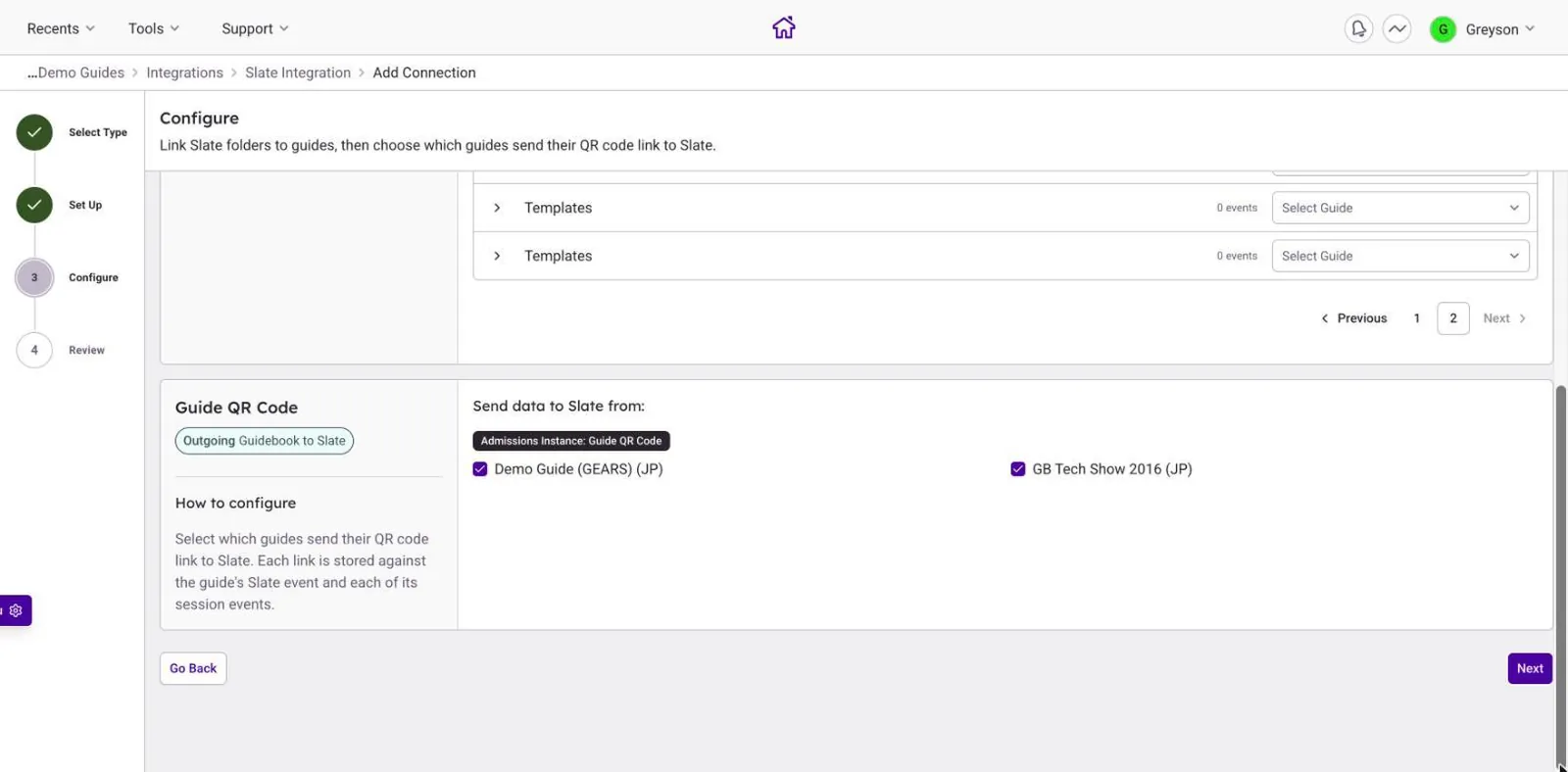
As the administrator, you also have the ability to select which guides send their QR code link. In this example we see both enabled. Proceed with “Next” when ready:
-
We are now ready to review the entire connection. Press “Save” or go back until satisfied with the configuration:
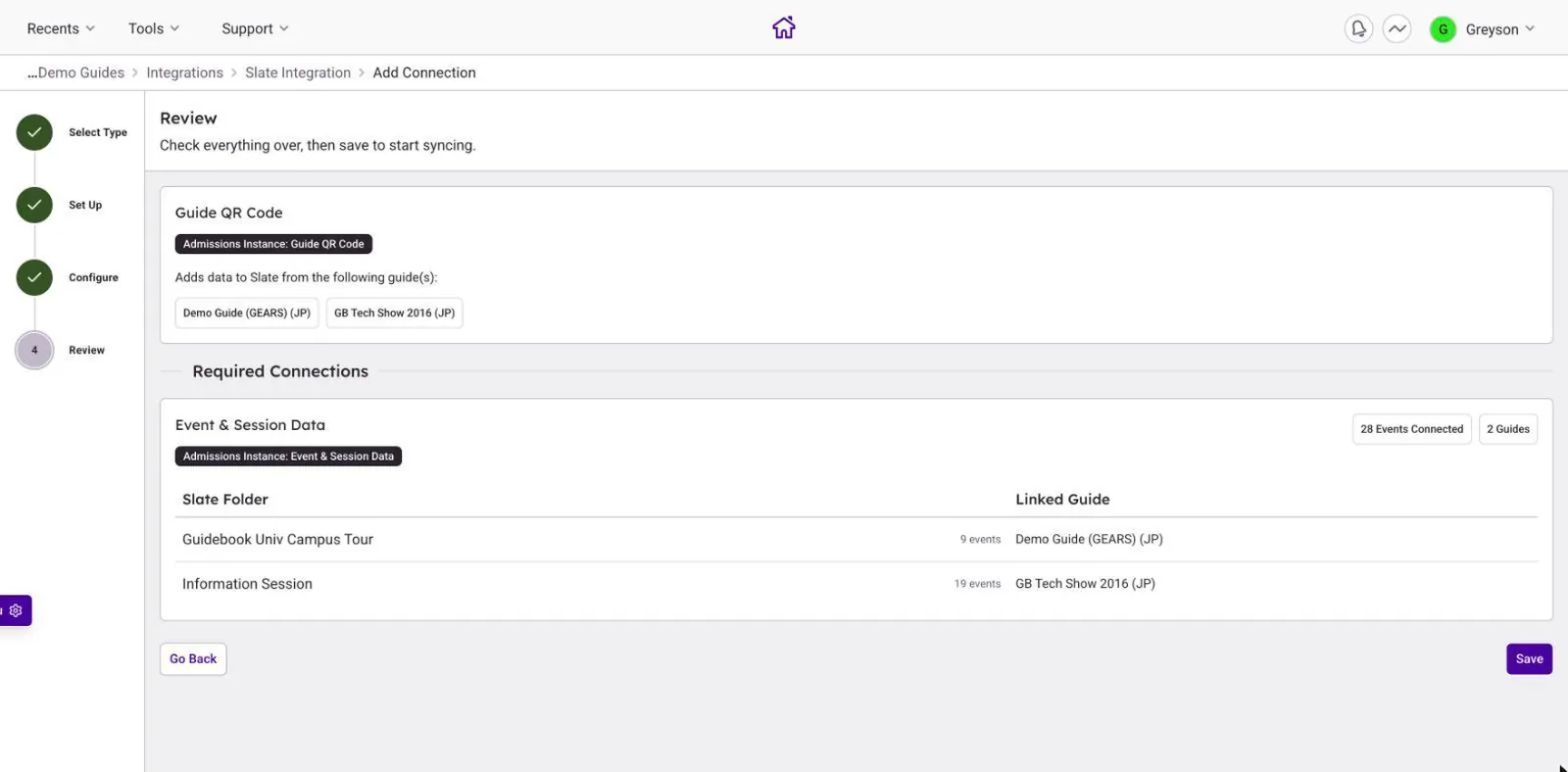
-
Rows will appear in your Source Format as below, one for each Slate event and session event of the selected guides. Row entries that appear as 0/0 are periodic connection tests from Guidebook and will not alter data in the database:
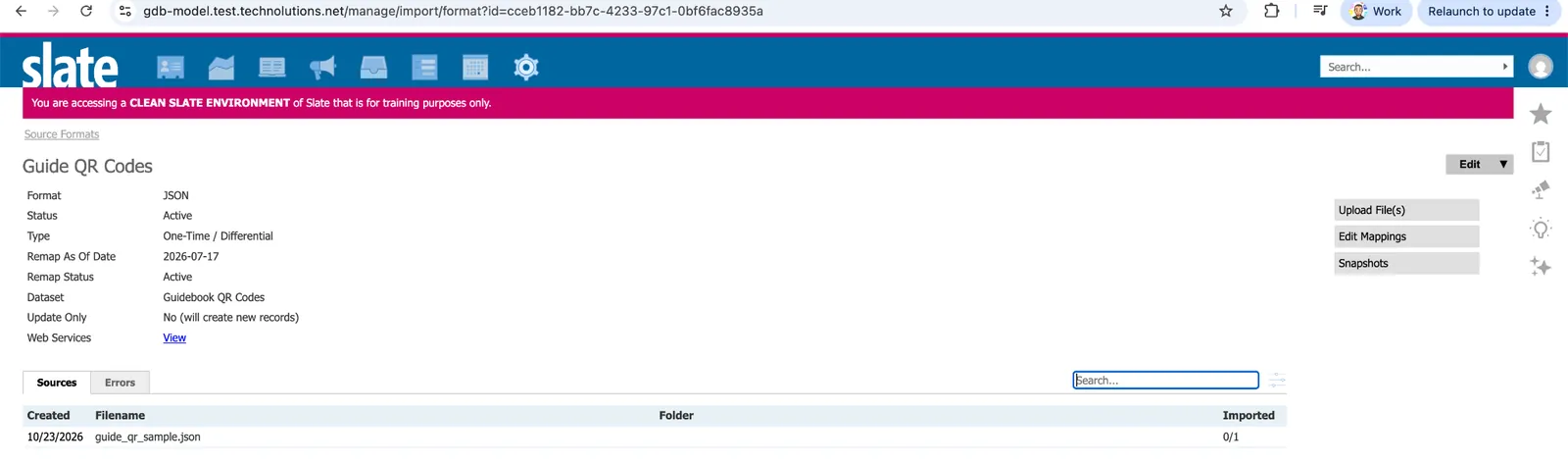
-
The final state of a configured Guide QR Code connection will look like so:
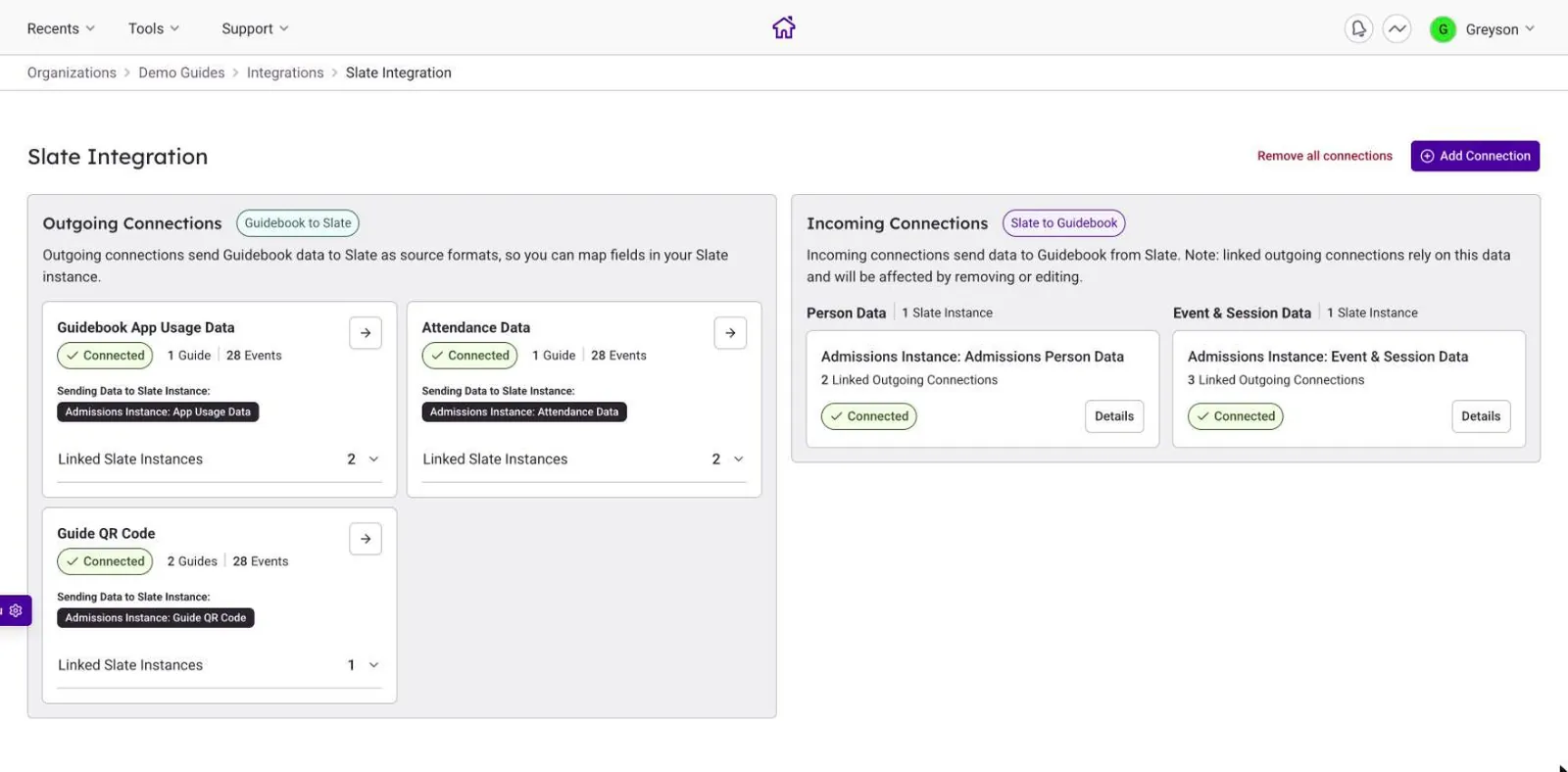
Managing the Integration
Once the Slate Guide QR Code integration is set up, Guidebook checks each selected guide every hour and pushes its QR code link to your Slate web service whenever it has changed, so the links in Slate stay up to date.
Please note that a guide's QR code link always opens the guide's latest version, so it does not need replacing when the guide changes.
From the Integration settings you can:
- Update credentials: if your Slate URL or service account changes, update them here. Saving a new URL re-sends every guide's link on the next hourly run.
- Pause the integration: stopping the flow of data from Guidebook to Slate
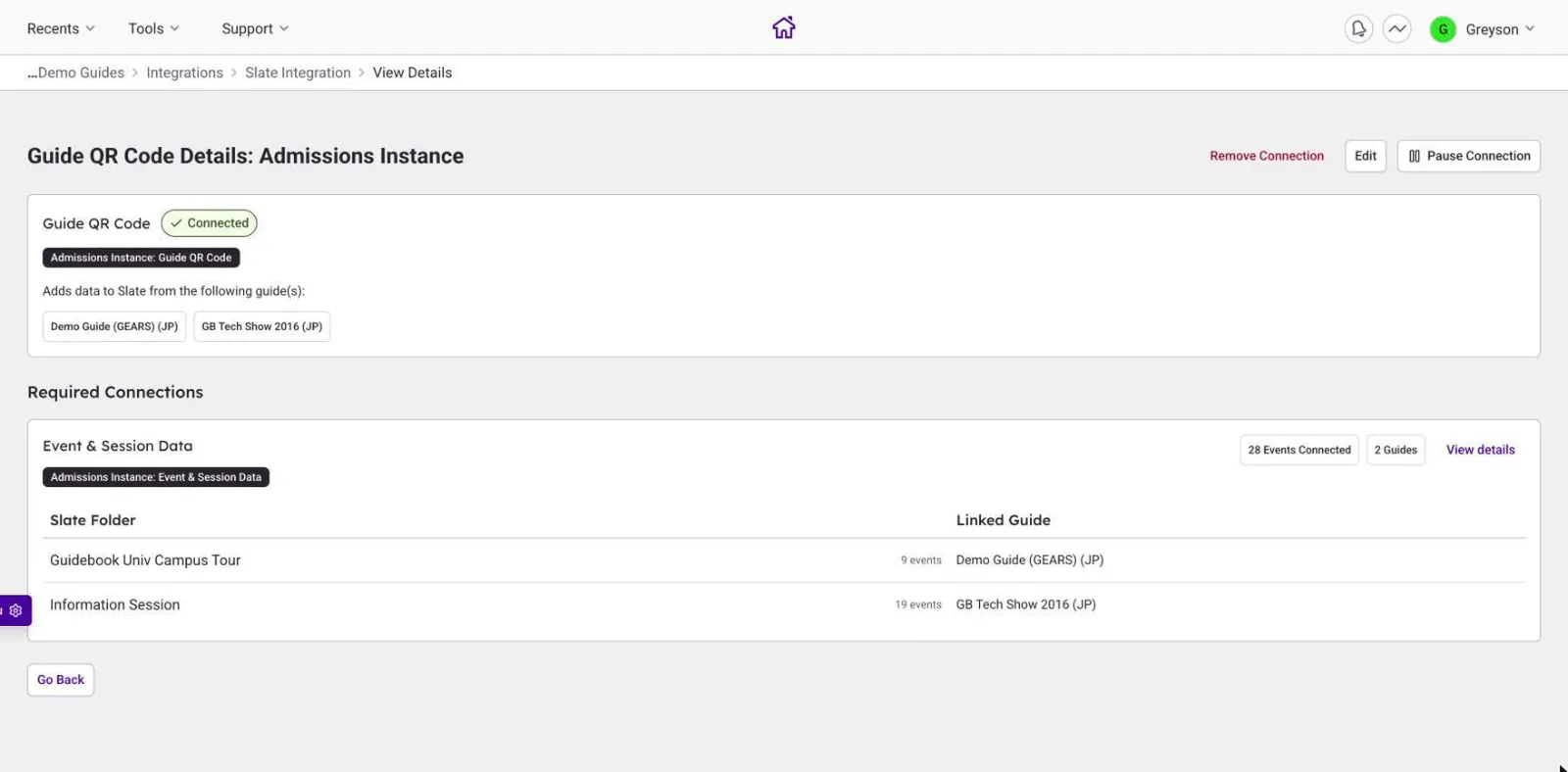
After it's connected
Update credentials or pause the integration, all from Builder.
Your data rules stay in place.
Slate stays the source of truth, and students decide whether their app activity is shared.
Opt-in only
App activity is sent only for logged-in students with a Slate record who said yes to the guide's privacy consent. No answer counts as no.
Rechecked every run
If a student withdraws consent, sending stops from that point on.
Protected guides stay out
Archived guides and guides with strict privacy turned on are never sent.
Slate owns the record
Student names and imported events are managed in Slate and stay in sync automatically.