
Events and registrants, ready in your guide
Link a Slate folder to a guide, and every event in it becomes a session in the guide's schedule, with its registrants added automatically.



Plans change.
You only update them once.
When plans shift, edit the event in Slate and your guide follows on the next sync.
- Times, rooms and descriptions stay in step with Slate
- New events in the folder appear as sessions; deleted ones are removed
- Event details live in one place, so nothing is edited twice
What comes over from Slate
Event details update on every sync; a few settings are copied once, when the session is created
How events map to your guide
One folder feeds one guide, and Slate stays the source of truth.
Setting it up
Your Slate admin prepares Slate, then a Builder organization admin connects it.
Events & Sessions Overview
Automatically bring your Slate events straight into Guidebook! The Events & Sessions integration turns the events in your Slate folders into sessions in your guides' schedules. It then keeps names, times, descriptions and locations up to date on every sync, so your guide reflects what you've planned in Slate.
How the Events & Sessions Integration Works
Linking folders to guides.
During setup, you link each Slate event folder to a guide in your Builder account. Every event in that folder becomes a session in the guide's schedule, grouped under a schedule track named after the folder. Each folder feeds one guide, and each guide can receive events from only one folder. You can link any of your organization's in-progress guides, but not archived ones. You can set up Events & Sessions on its own, without also configuring Person Data.
What syncs.
The integration syncs on the cadence you choose. Each sync updates session names, descriptions, start and end times, and locations with addresses. It also adds sessions for new events in a linked folder and removes sessions for events deleted in Slate. When a Slate event has a capacity, its capacity, login requirement, add-to-schedule, waitlist and registration date settings are copied into the session when it's first created and aren't updated afterward. Data flows one way, from Slate to Guidebook. Online event URLs and instructions, recording URLs, and registrant and attendee counts aren't imported.
Managing imported sessions in Builder.
Slate is the source of truth for imported sessions. Names, descriptions, times, all-day settings, schedule tracks and locations changed in Slate will carry over to Guidebook on the next sync. Imported sessions, and the tracks and locations the sync creates, can't be deleted in Builder. You can still manage capacity, login requirements, add-to-schedule, waitlists, registration dates, images, rank and ratings in Builder, and the sync never changes them. Sessions you created manually in Builder are left untouched, so duplicates are possible if the same event exists both in Slate and as a manual session. Pausing the integration stops the sync. Removing it stops the sync and leaves the existing sessions in your guide.
Syncing Event Registrants
The integration also brings your Slate registrants into Guidebook, so you don't have to manage attendees in two places. When someone completes registration for an event in Slate, they're added to the Users list under Audience Management for the linked guide in Builder, with a status of Created. If the registrant already has a Guidebook account, that account is added to the guide; if not, an account is created for them first. Registrants who were added earlier and are still registered in Slate keep their current status in the guide. As with event data, this sync runs one way, from Slate to Guidebook, so changes you make to a user in Builder don't affect their registration in Slate.
Events & Sessions Integration Set Up
Slate Configuration (Building the Event & Session Query Web Service in Slate)
In Slate, you will need to import one Suitcase for the Event & Session Data Query
-
Import the Guidebook Event & Session Suitcase suitcase via the Database “Suitcase Import”. Suitcase ID:
12ea6125-ba92-4116-b11b-84bf907f8957:gdb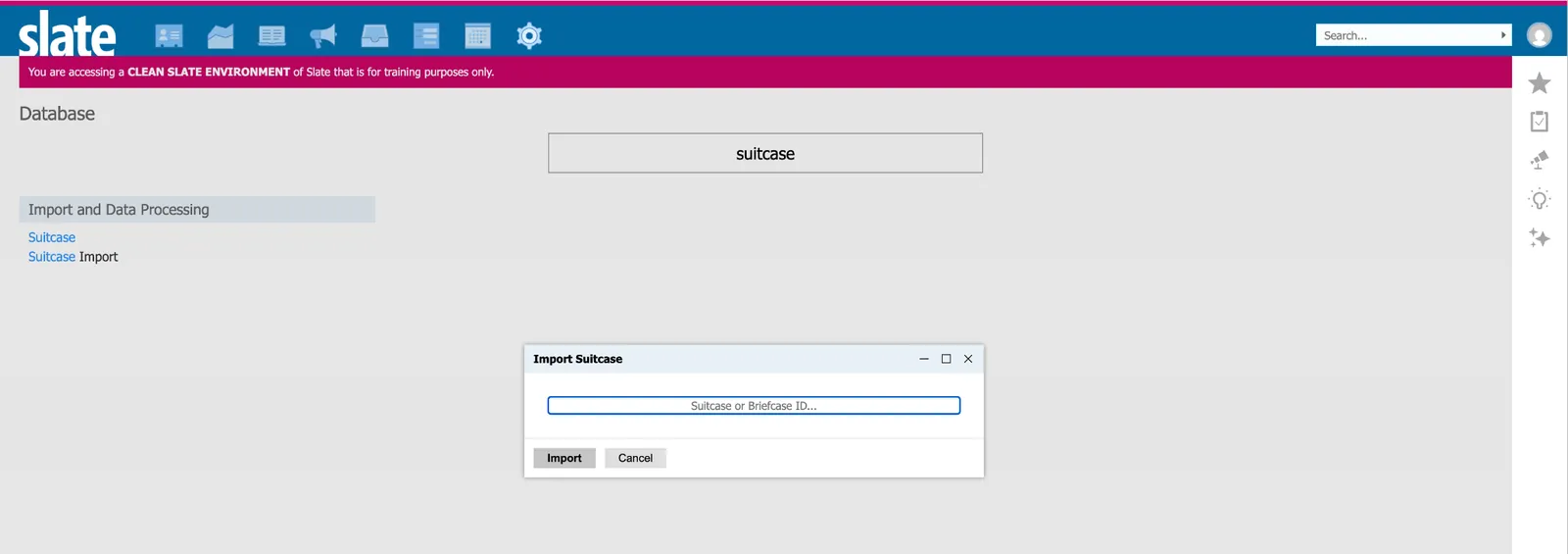
-
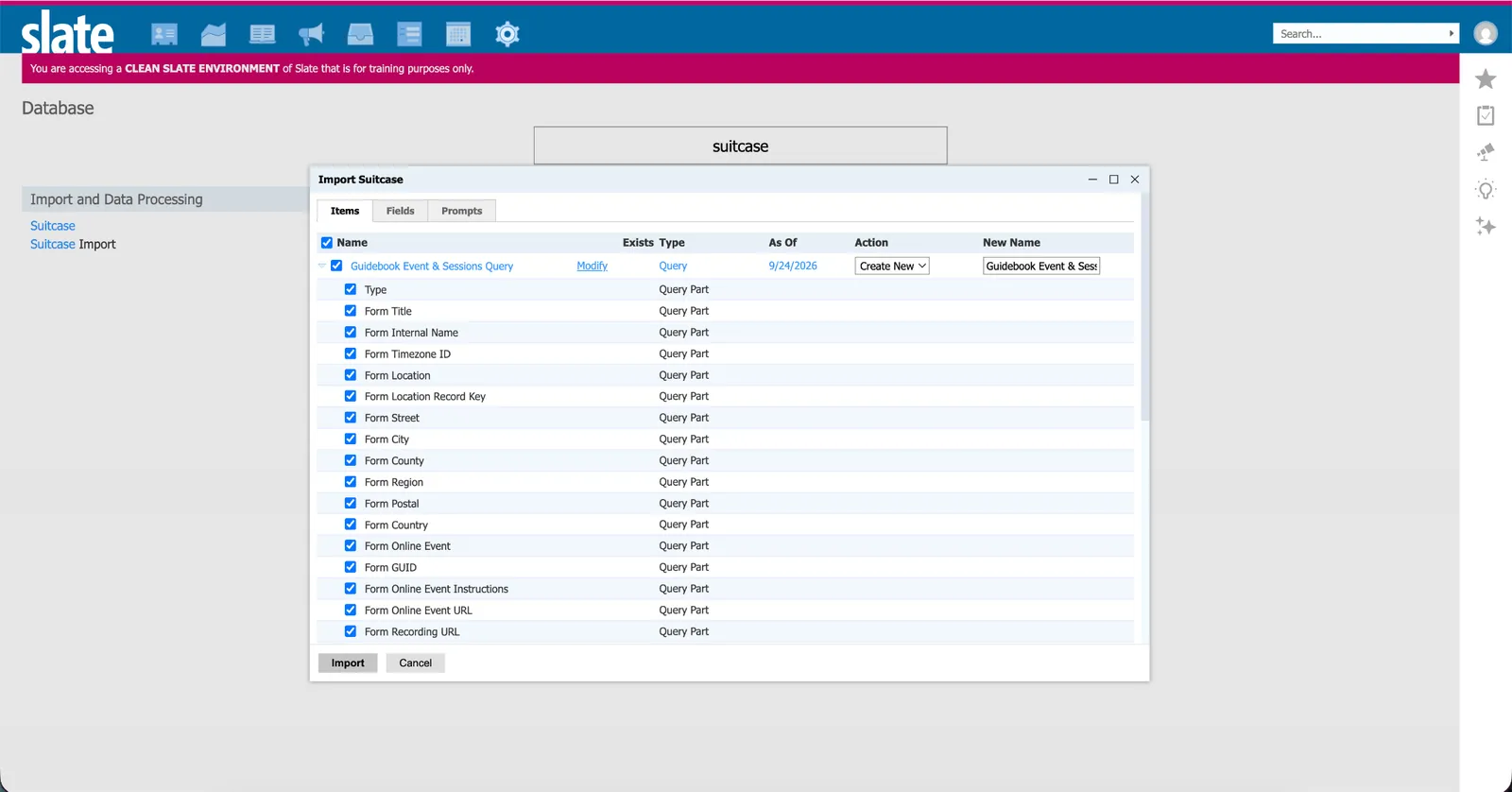
Select “Import” and choose the New Name of “Guidebook Event & Session Query”
-
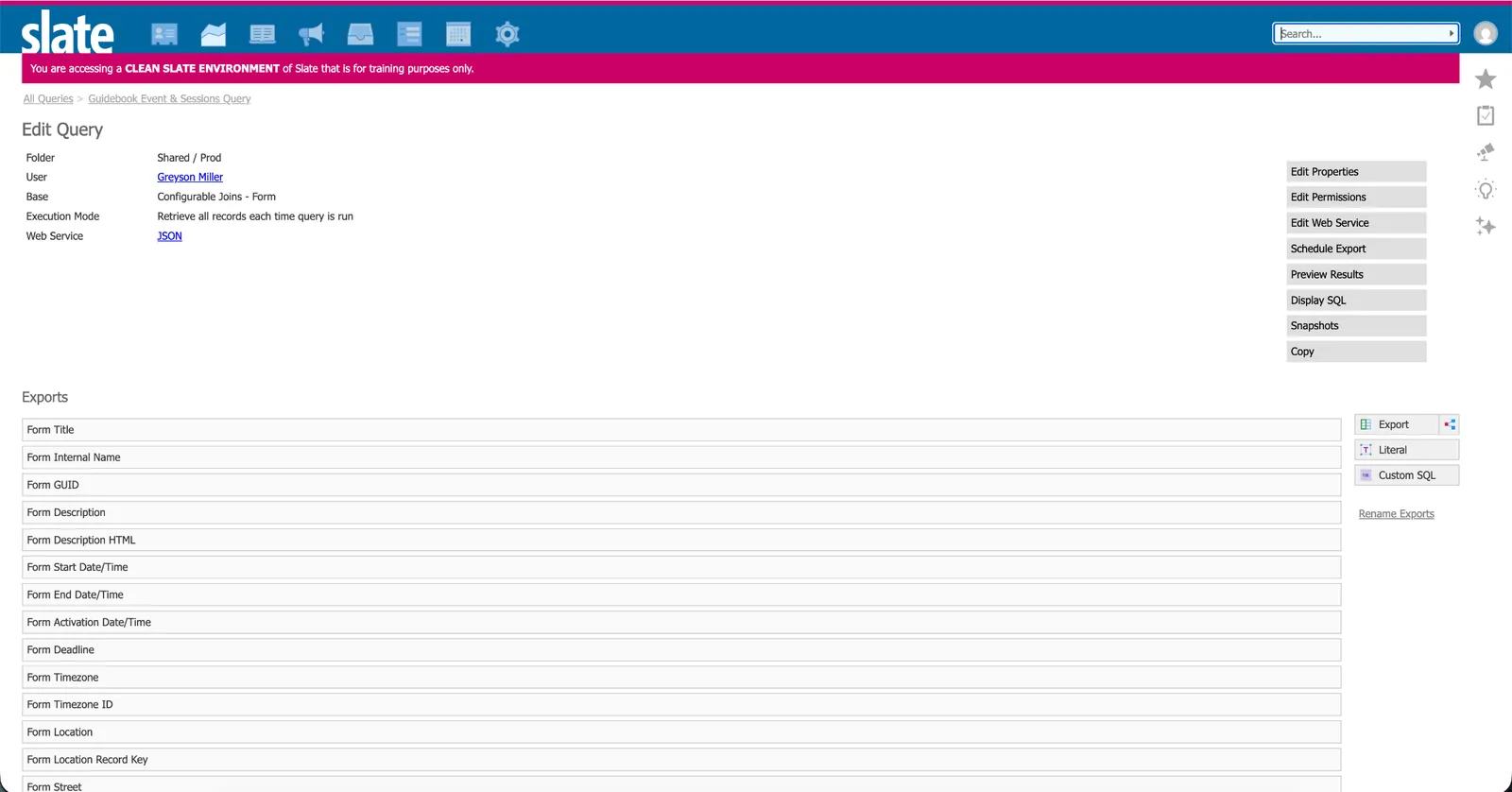
Validate success by selecting “Edit Query”. Ensure you see Fields populated in the “Exports” section.
-
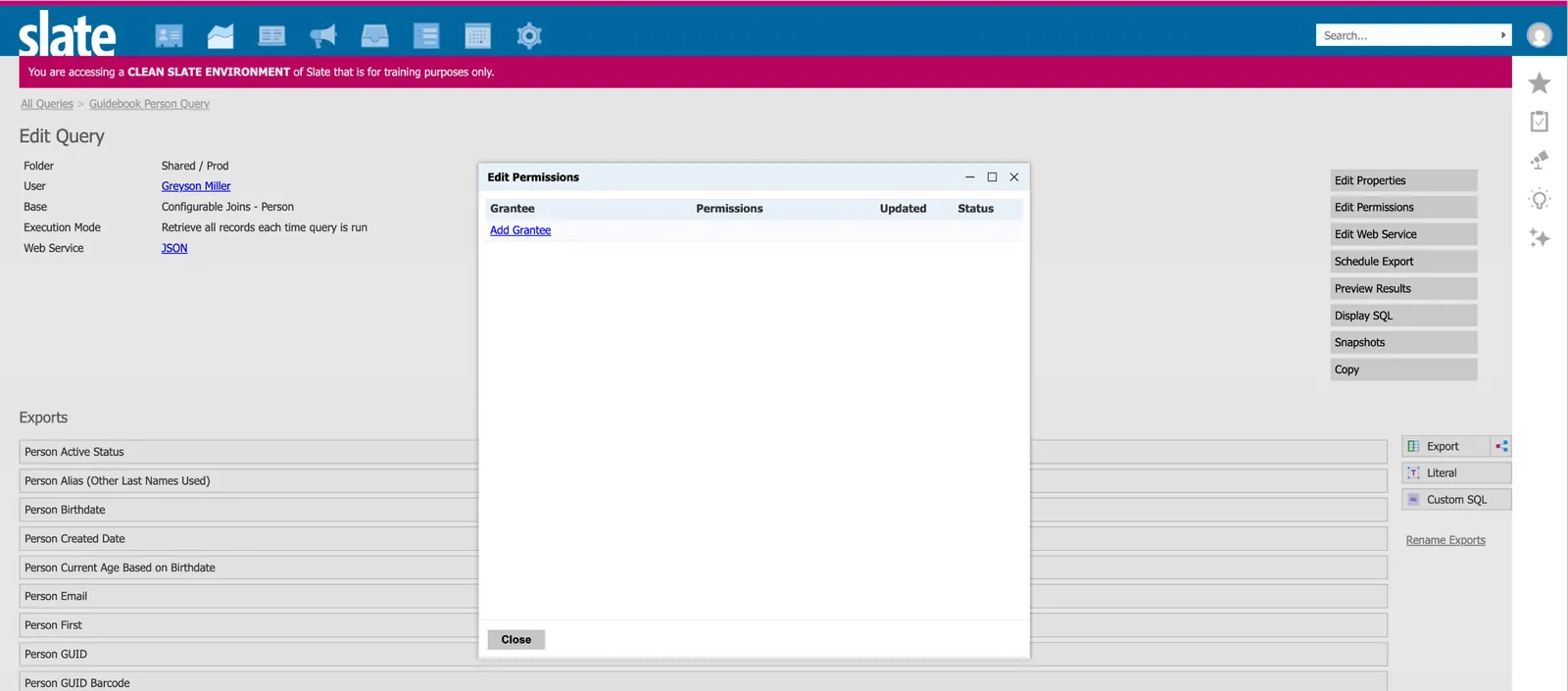
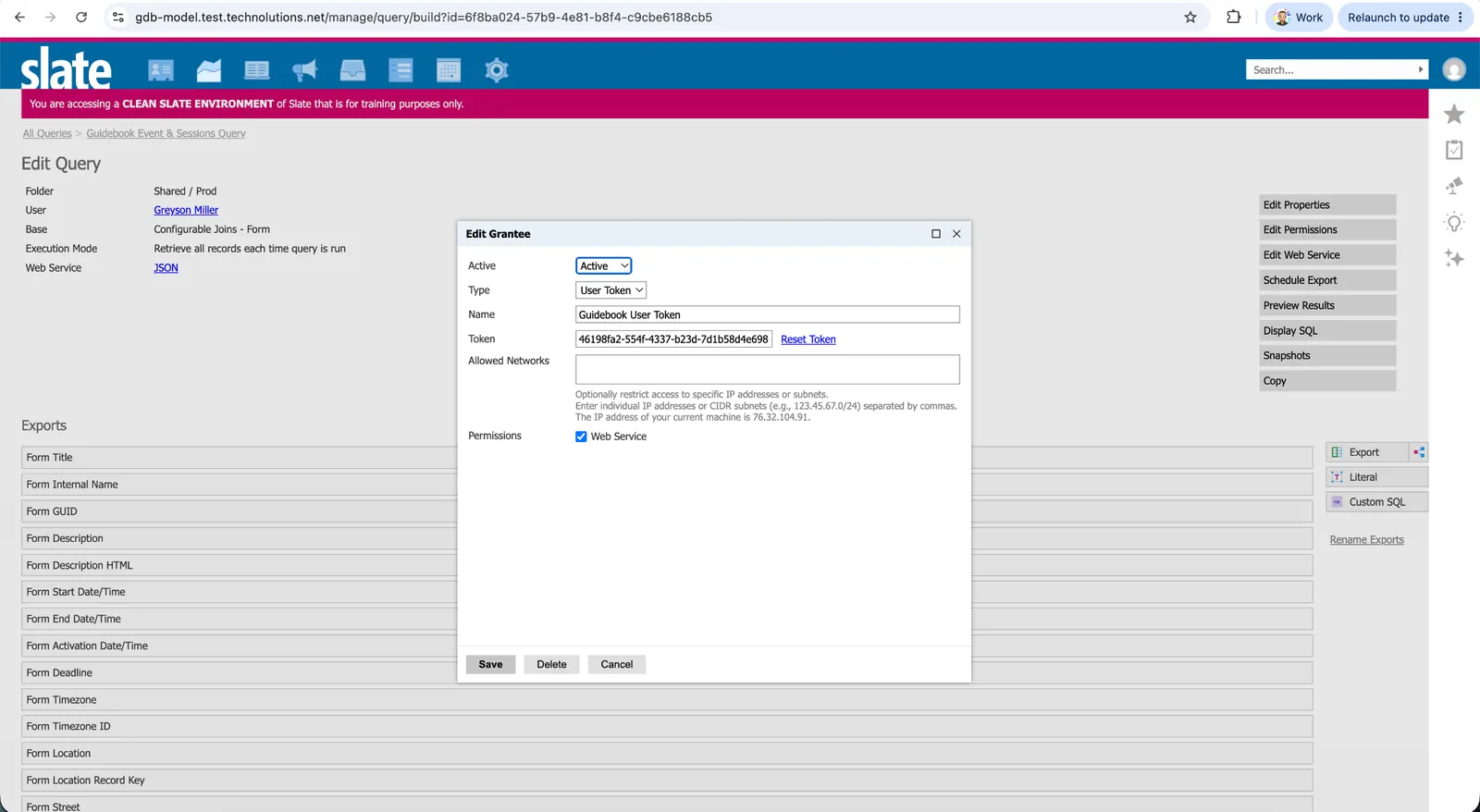
At the Edit Query screen, choose “Edit Permission” and add a new grantee
-
Choose the name “Guidebook User Token” the Type of “User Token”, and check the “Permissions” button for Web Service, then Save. This is the service account that will provide authorization to this Web Service.
-
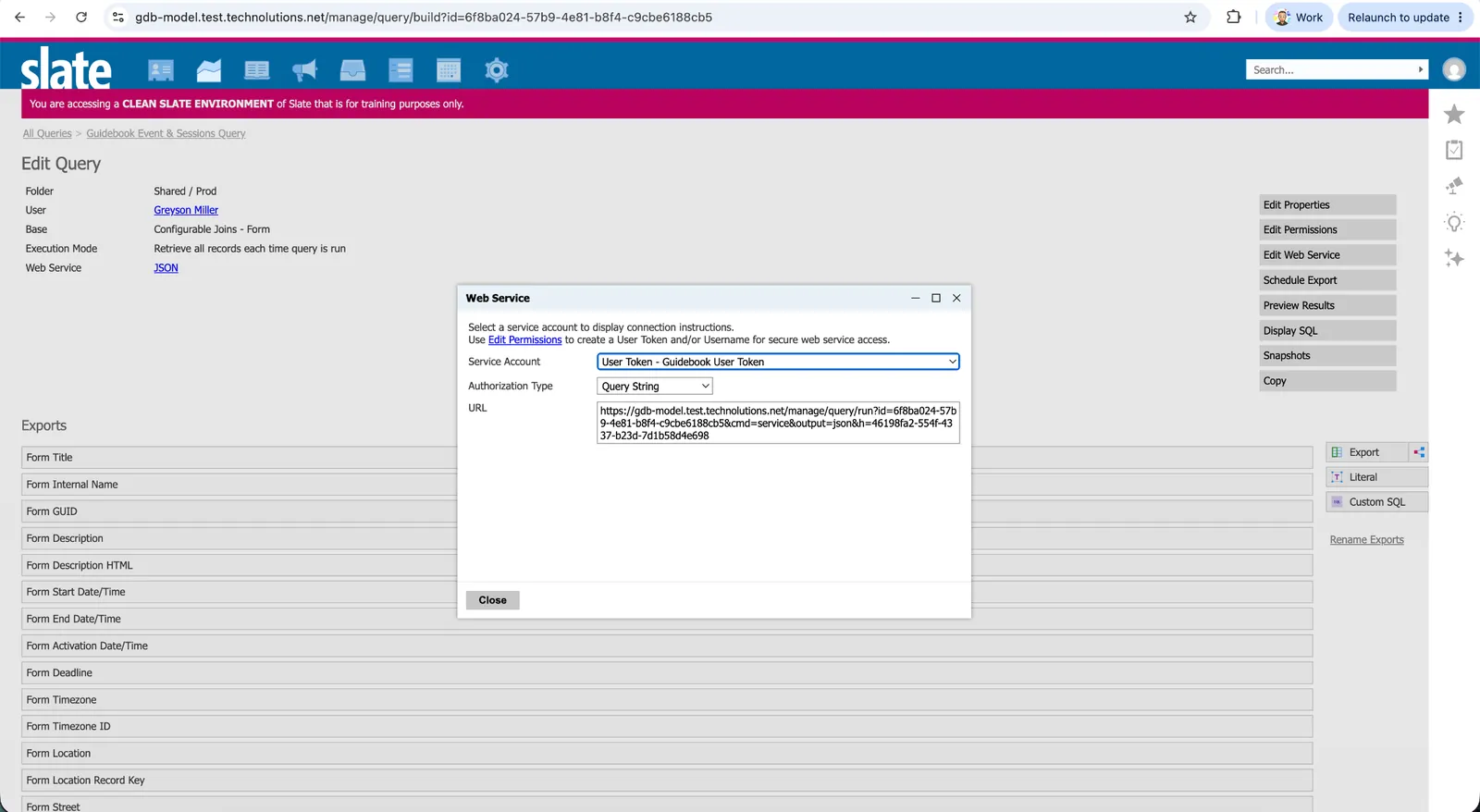
Return to the “JSON” link on the Query itself to select a service account. Choose the Grantee you just created, and copy the generated web service URL. It will include a security key as the h= parameter at the end, for example:
https://slate.youruniversity.edu/manage/query/run?id=XXXX&h=YYYYYYYYKeep this URL handy. You will paste it into Builder in the next step.
Setting Up the Slate Event & Session Integration in Guidebook Builder
Now that you have your Slate web service URL, log in to Builder and open your guide's Integrations settings.
-
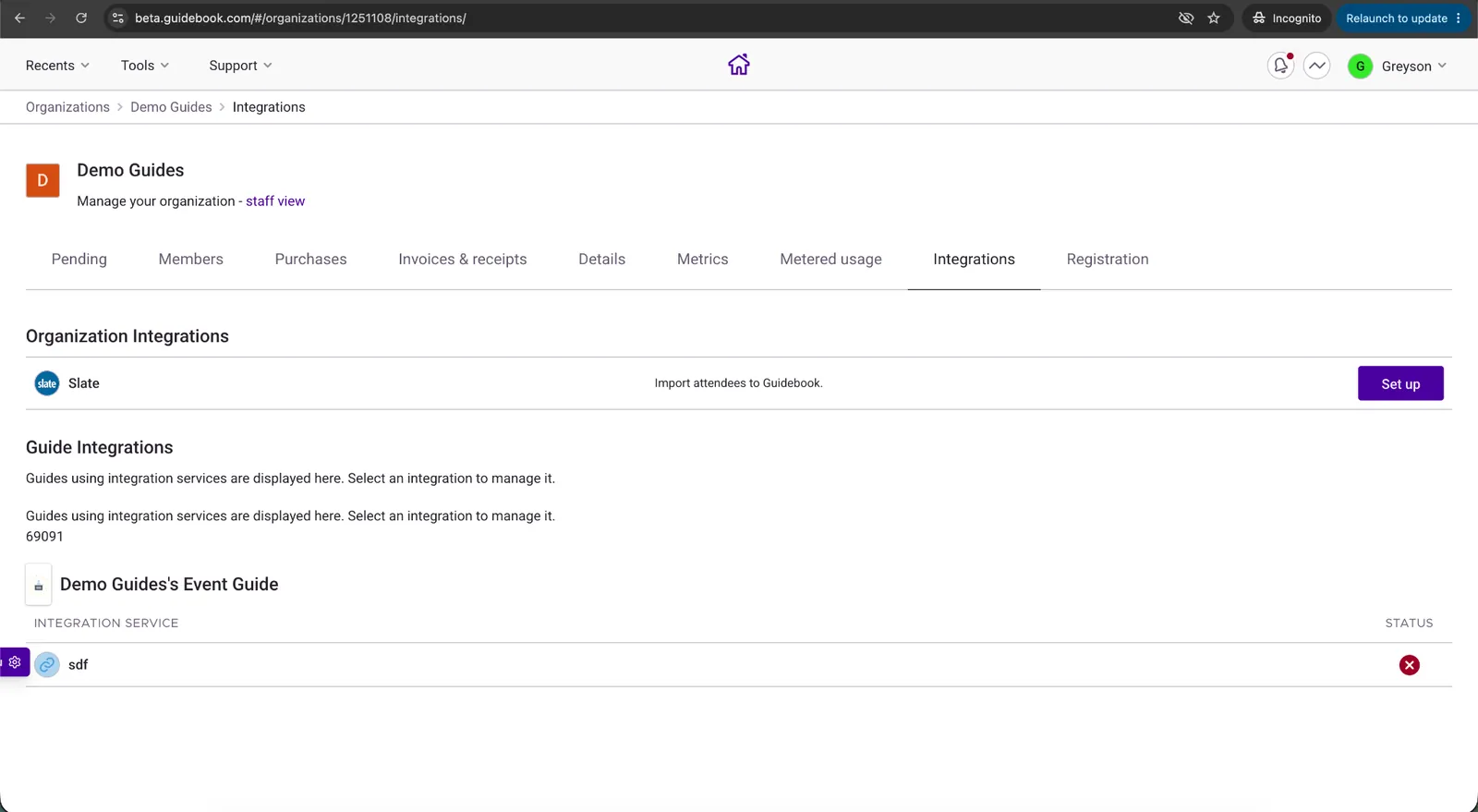
Find the Slate integration in your Organizations “Integrations” tab and click Set up.
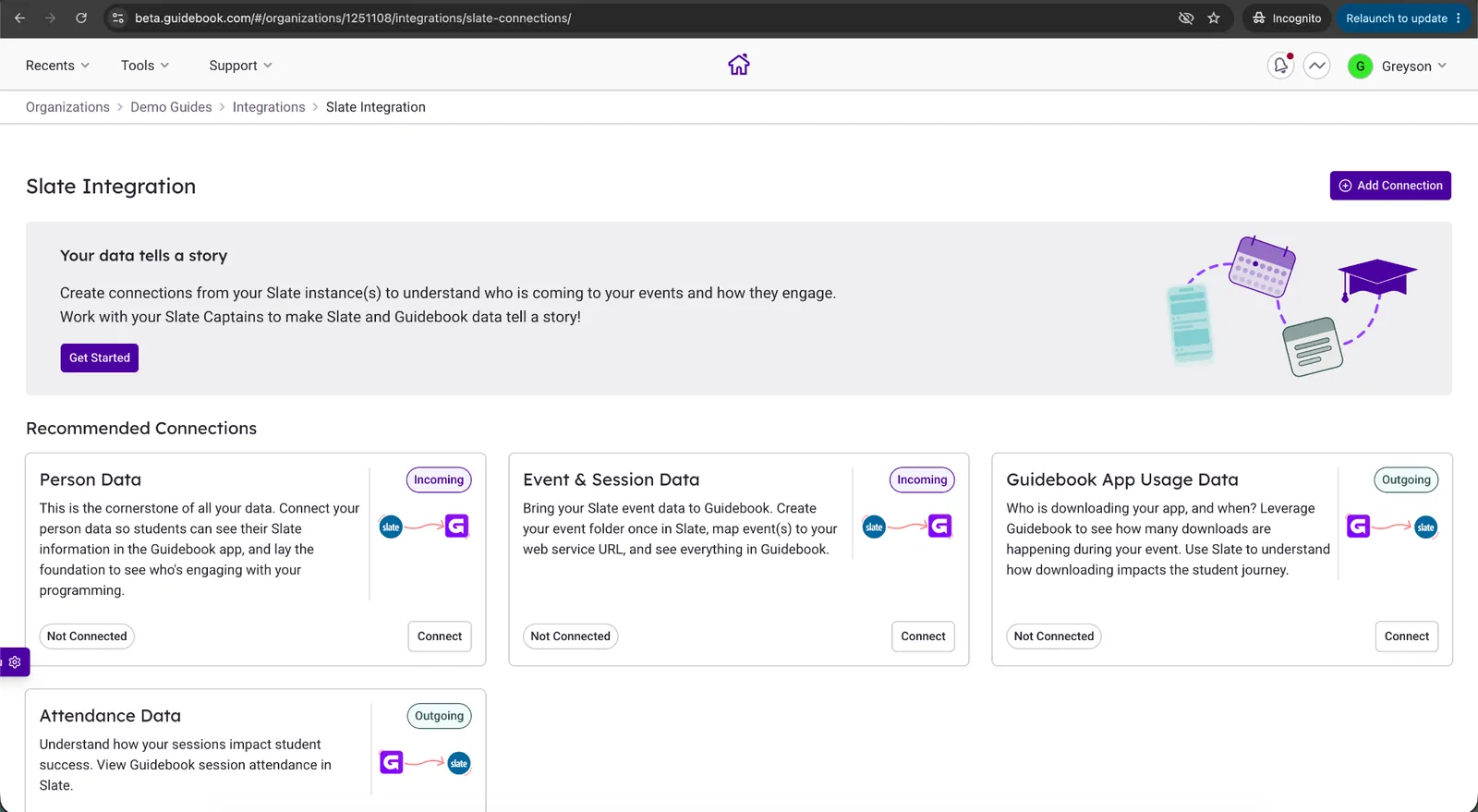
Choose Event & Session Data, and press “Connect”
-
Choose the Event & Session Data (Incoming) section, and click “Connect”
-
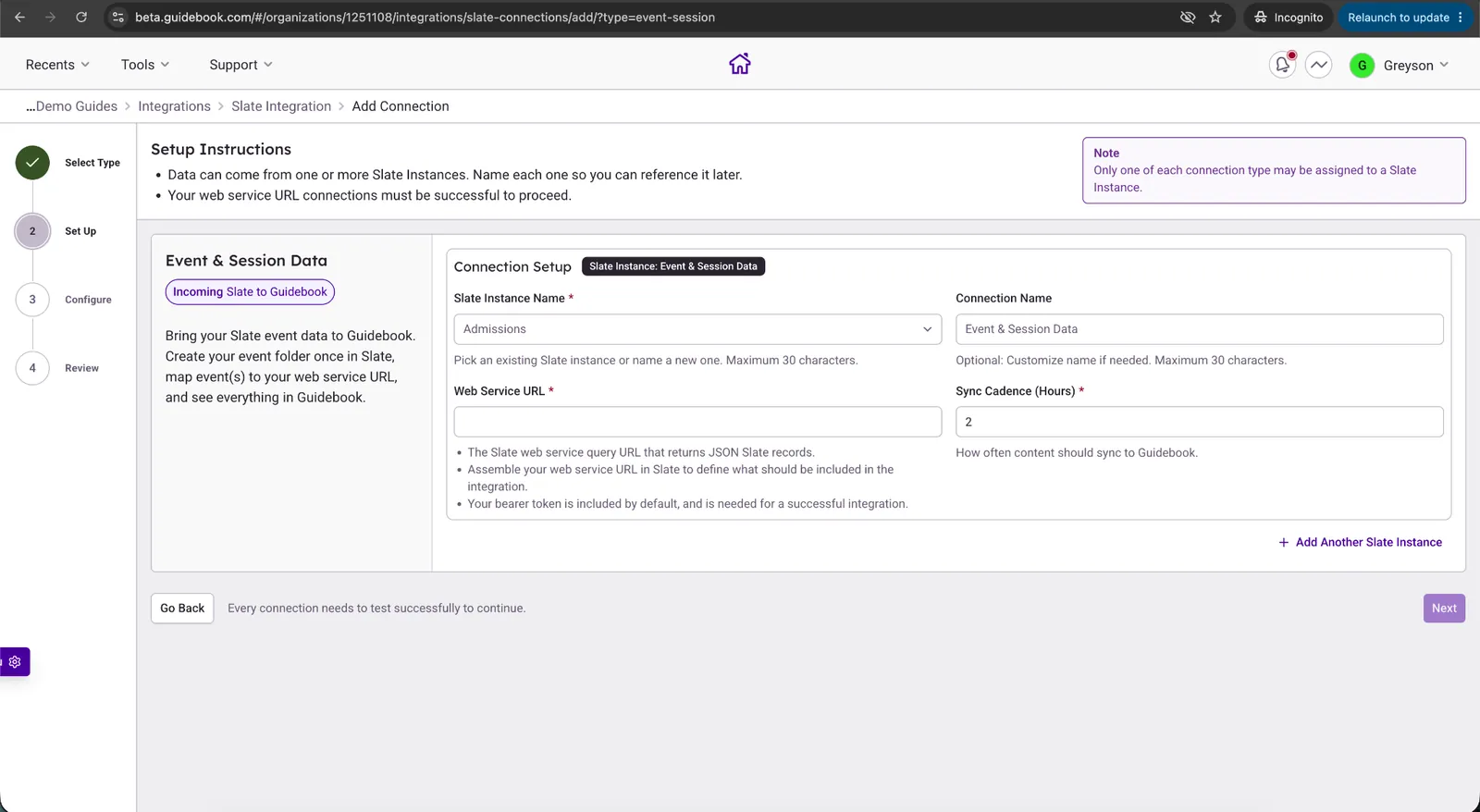
If this is your first instance, you will put in an instance name and connection name so this is identifiable among other instances. Paste in your web service URL and select a sync cadence (default every 2 hours). The web service connection will be automatically tested once pasted, and success will be noted by the “Connected” pill. If you have more than one instance, you have the opportunity to insert another section for Event & Session data from those instances. Once the test succeeds and you have entered the details of all the Event & Session Data connections across instances that you want, click “Next”.
-
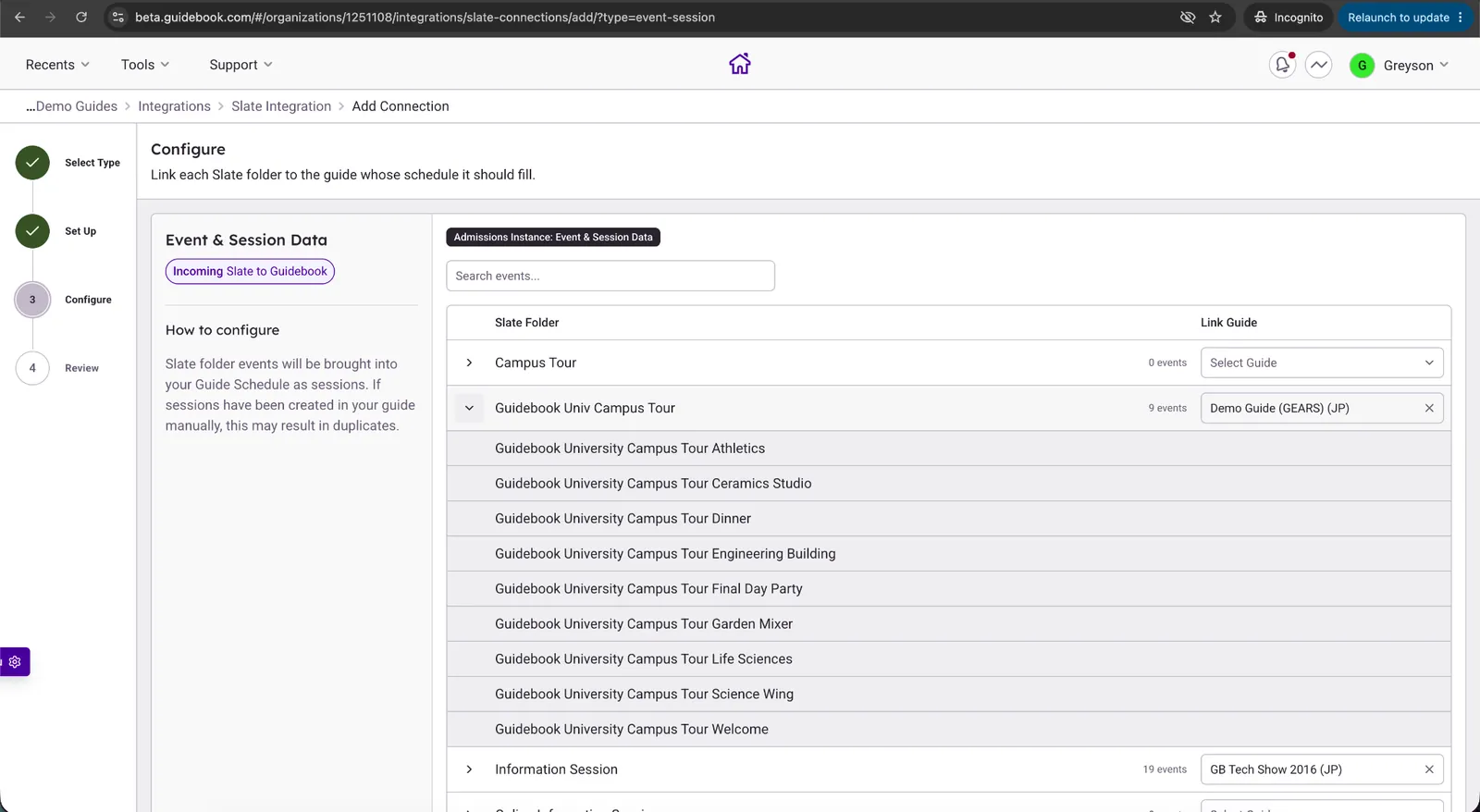
We are now ready to map the Slate Events to the Guidebook Guides in order to automatically populate the Events made in Slate to Guidebook! Map at least one Slate Folder to one Guidebook Guide.
-
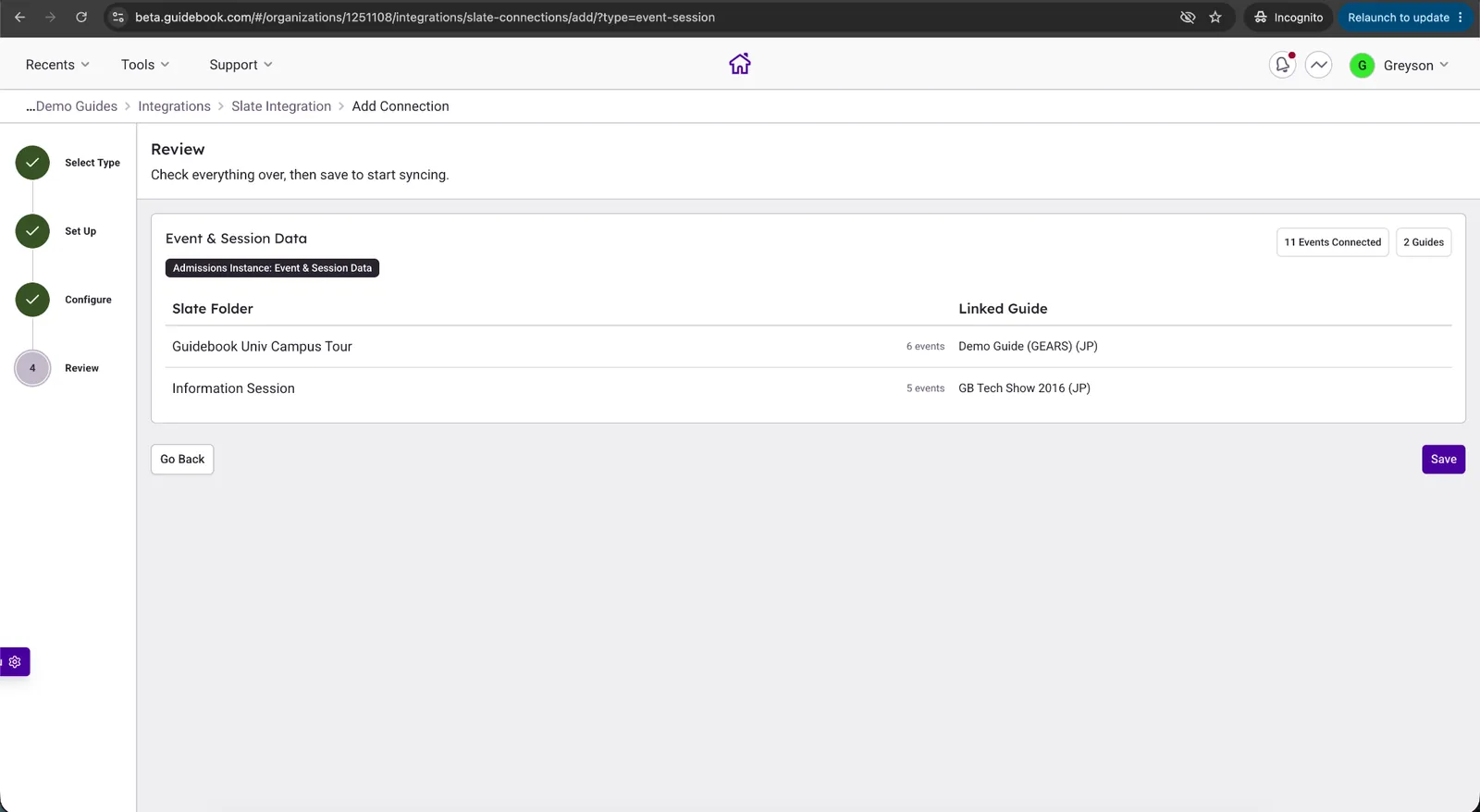
You are now able to review your setup. Click Save to enable the integration, or go back to fix any items.
-
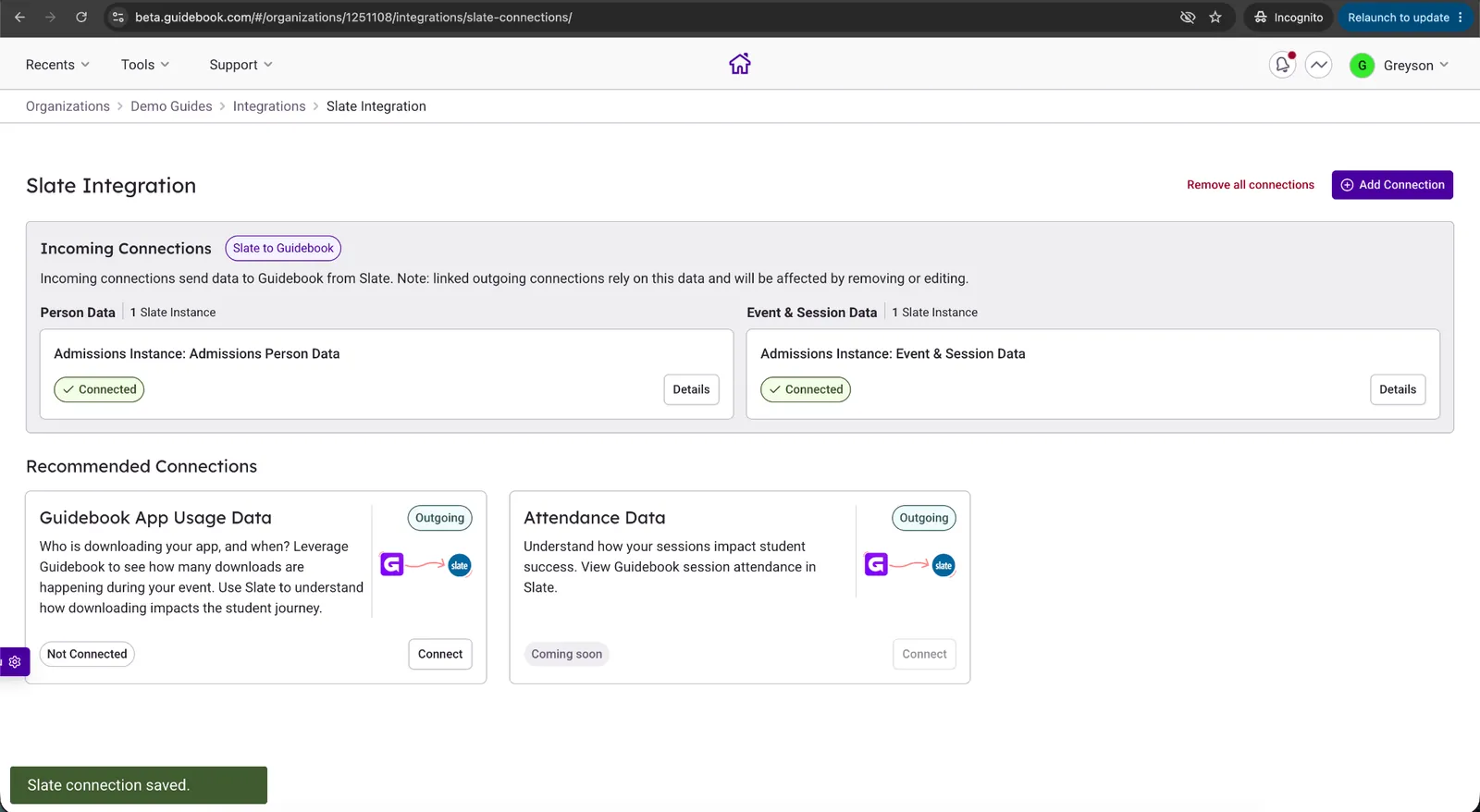
As soon as the integration is saved, Guidebook runs a first sync automatically. You can expect a successful connection to look like below:
Managing the Events & Sessions Integration
Once the Slate Event & Session integration is set up, Guidebook syncs with your Slate web service on the cadence you chose (every 2 hours by default), keeping Event & Session Data up to date.
From the “View Details” button you can:
- See or update mappings between Slate Event Folders and Guidebook Guides
- Update credentials: if your Slate URL or security key changes, update them here. Saving a new URL or key triggers an immediate re-sync.
- Change the cadence: adjust how frequently Guidebook polls Slate.
- Pause the Event & Session Data connection
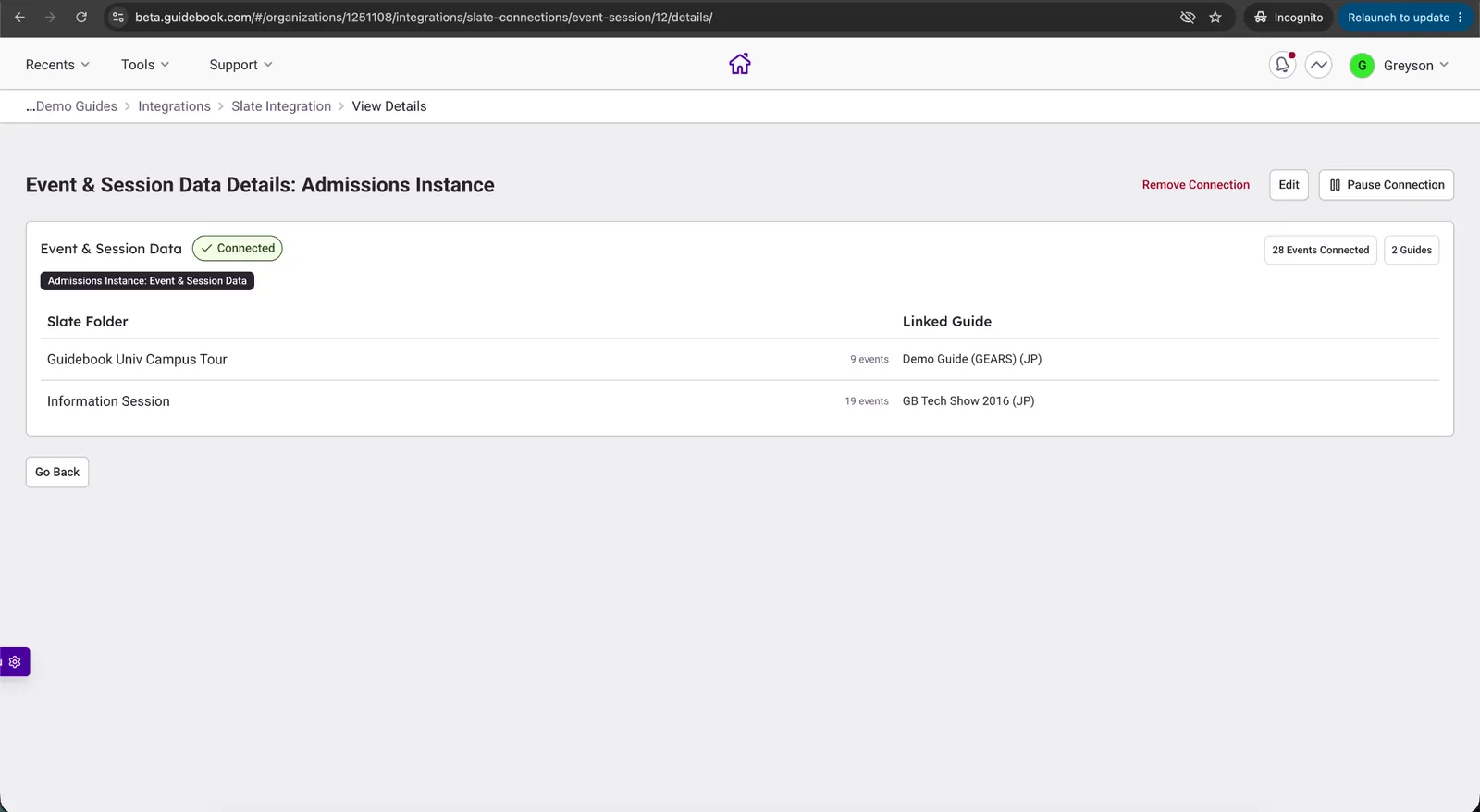
After it's connected
Change field labels, credentials or sync timing, or pause the connection, all from Builder.
Your data rules stay in place.
Slate stays the source of truth, and students decide whether their app activity is shared.
Opt-in only
App activity is sent only for logged-in students with a Slate record who said yes to the guide's privacy consent. No answer counts as no.
Rechecked every run
If a student withdraws consent, sending stops from that point on.
Protected guides stay out
Archived guides and guides with strict privacy turned on are never sent.
Slate owns the record
Student names and imported events are managed in Slate and stay in sync automatically.