
Check-ins, recorded in Slate
When someone checks in to an event or session in Guidebook, their Slate registration is marked Attended, with the time they checked in.



See who showed up, not just who signed up.
Turnout lands on the same Slate registrations your team already works from, so you can:
- See turnout for each event and session
- Follow up with registrants who didn't attend
- Use attendance in queries, communications and reporting
What goes back to Slate
Every way someone can check in is sent, and each one marks their registration Attended.
How check-ins get to Slate
What it builds on, how sessions count, and which guides send.
Setting it up
Your Slate admin prepares Slate, then a Builder organization admin connects it.
Overview
Attendance Data sends check-ins from Guidebook back to Slate. When someone checks in to an event or session in Guidebook, their registration for that event in Slate is marked Attended, along with the time they checked in. Your Slate records then show who actually showed up, as well as who registered, without any spreadsheets or manual uploads. Attendance Data is part of the Guidebook Slate integration and is free to use.
How the Guidebook Attendance Data Integration Works
The Guidebook Slate integration moves information in both directions. The Events & Sessions connection brings your Slate events and registrations into Guidebook, so each registrant lands in the right guide with the right sessions. Attendance Data completes the loop. When a registrant checks in at your event or session, Guidebook records it on their Slate registration.
Check-ins can happen in any of these ways, and each one is sent to Slate:
- An attendance manager adds the attendee by email in Builder.
- An attendance manager scans the attendee’s QR badge in Builder.
- The attendee checks themselves in by scanning the event’s QR code and entering their email.
- An attendance manager checks attendees in from the Guidebook mobile app by scanning a badge, entering an email, or picking them from the list.
Checking someone into a session marks them as attended for the overall event, so your event-level attendance stays complete even if they only checked in at one session.
Because attendance is written to the same registrations that came from Slate, it only works for guides connected to events and sessions synced from Slate. That’s why Person Data and Events & Sessions need to be set up first. You choose which guides send attendance back, and attendance is only sent for attendees who have agreed to share their data.
With this information in Slate, your team can see turnout for each event and session and follow up with registrants who didn’t attend. You can also use attendance in Slate the same way you use any other part of the student record, for example in queries, communications and reporting.
Attendance Data Set Up
Set Up Prerequisites:
Before you can set up the Slate Attendance integration within Guidebook Builder, you will need the following:
From Slate: An Attendance Data Source format imported via a Guidebook provided suitcase and a service account with credentials.
AND
From Guidebook: Both a Person Data Connection and an Event & Session Data Connection from the same instance you are configuring, see above sections for details.
Slate Configuration (Building a Query Web Service in Slate)
In Slate, you will need to import one Suitcase for the Attendance Source Format.
-
Get the Guidebook Attendance Data Suitcase ID from your Guidebook contact. Import this suitcase via the Database “Suitcase Import”. Suitcase ID:
31302f2d-f05f-49fd-b4f2-d73d42c56a52:gdb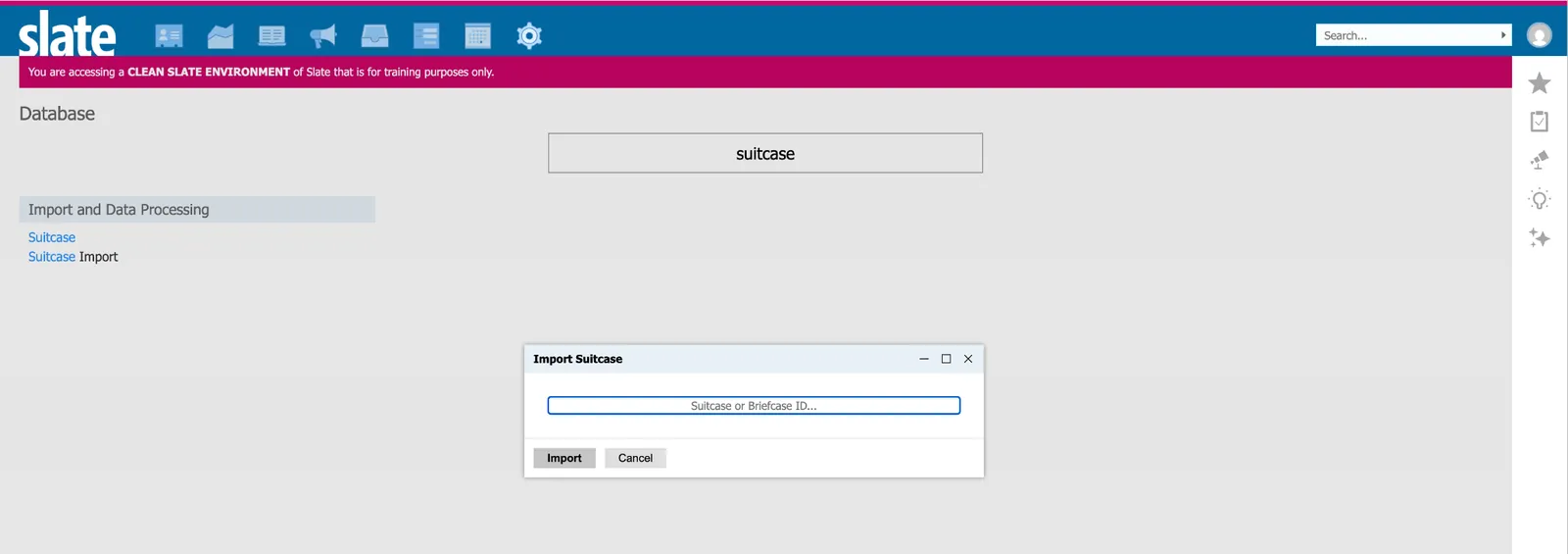
-
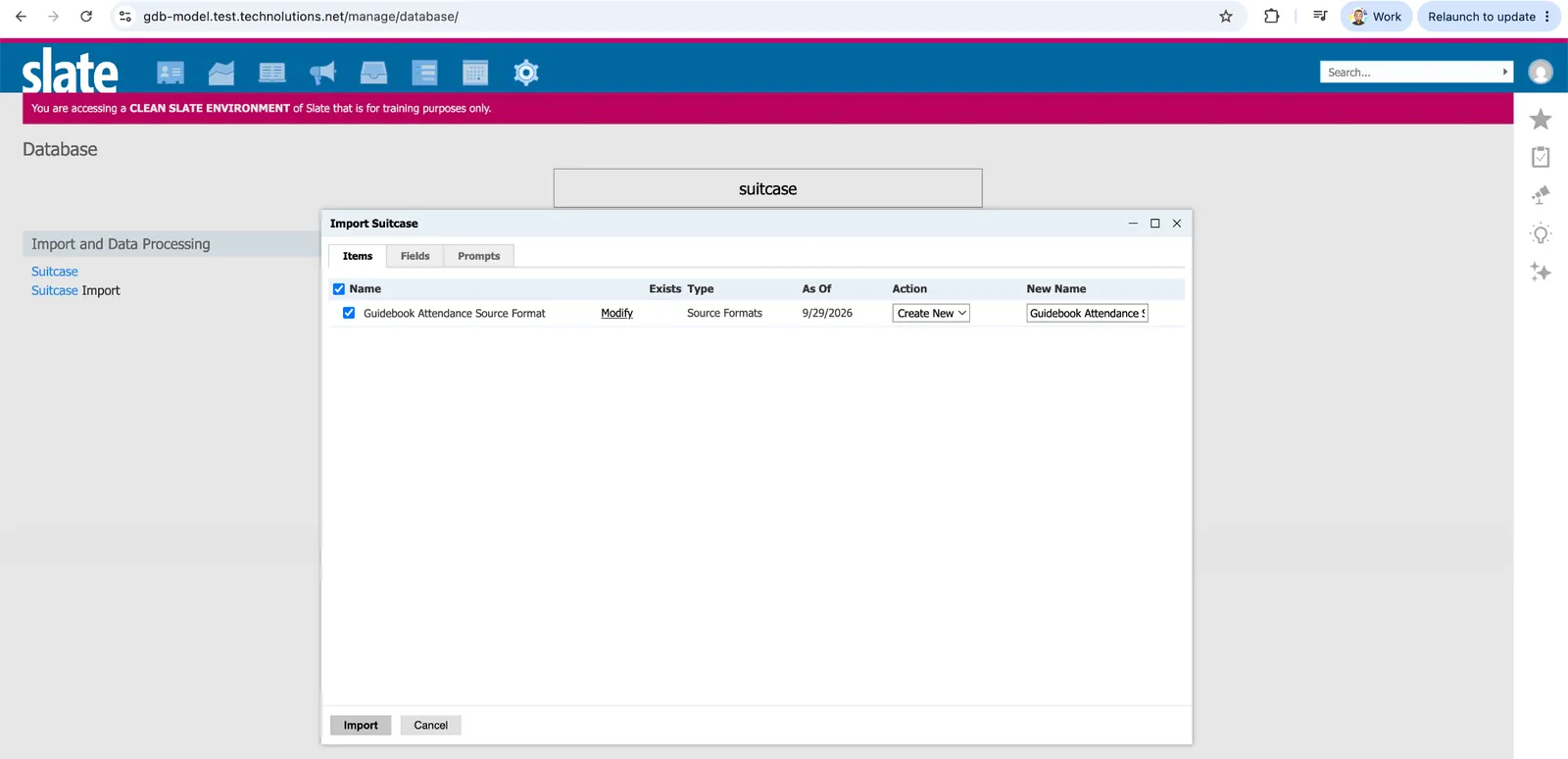
Please select “Import” and choose a new name for the Source Format
-
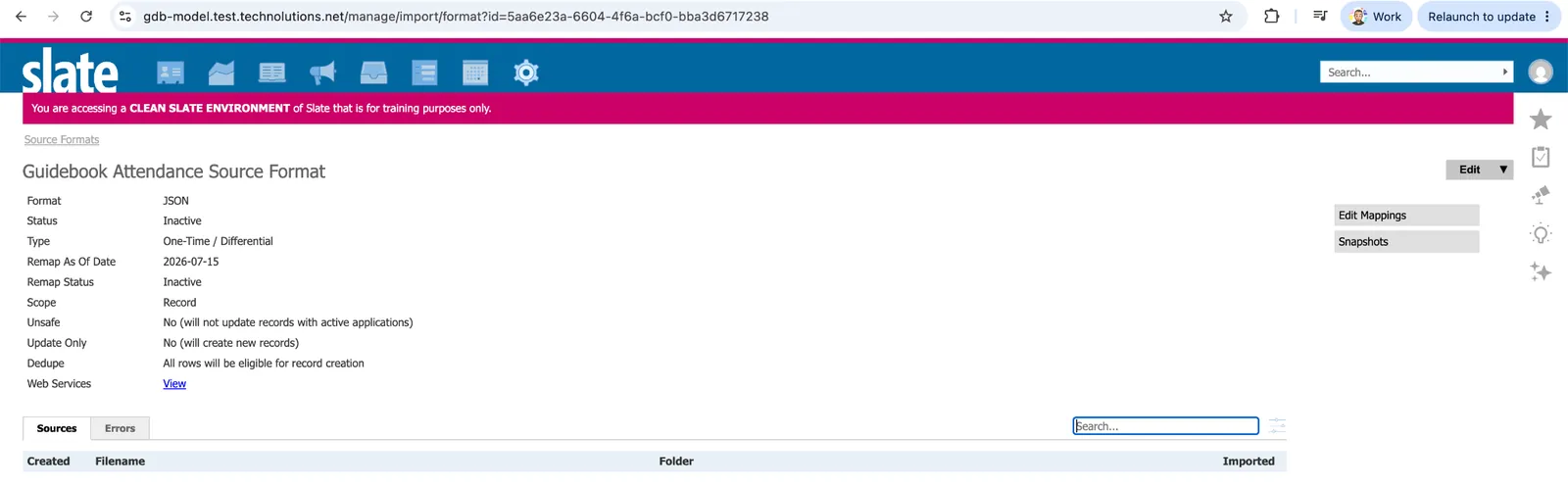
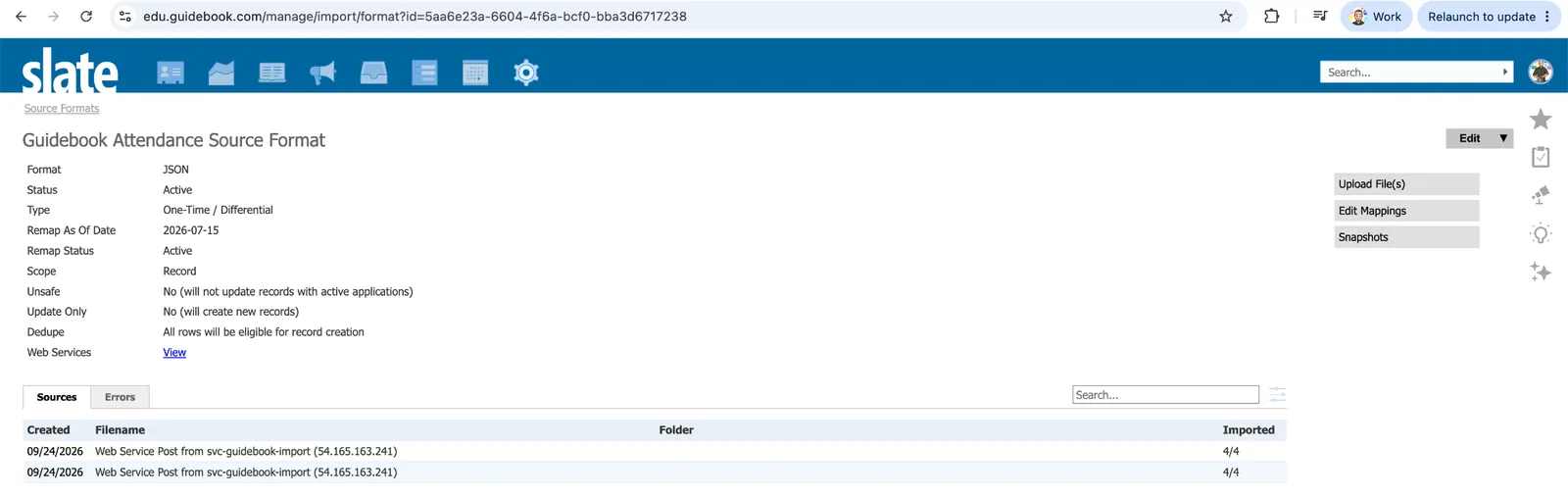
Validate success by locating the Source format you imported in the list of Source formats. You may see an initial empty post which was used to test the connection:
-
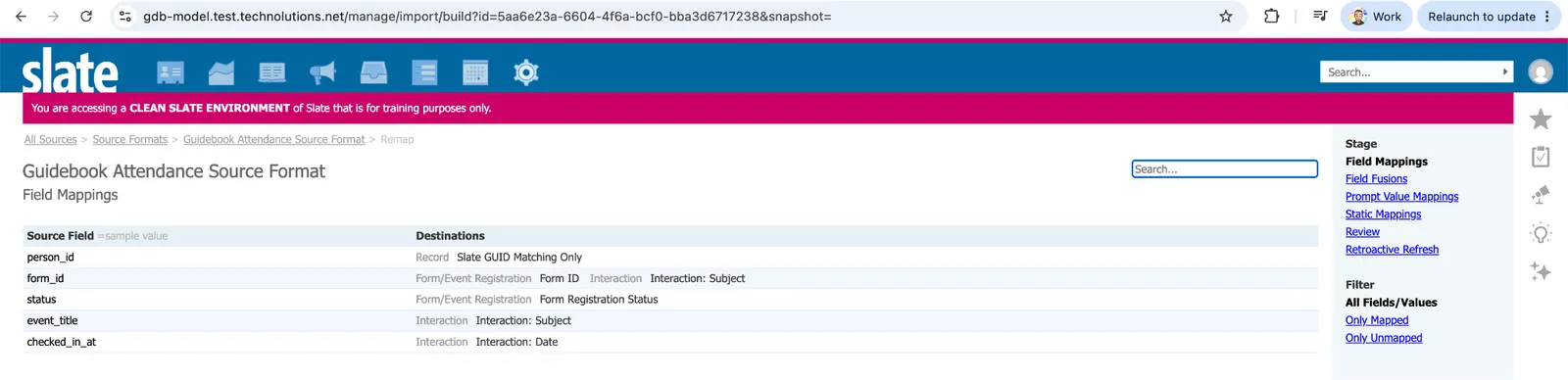
This Suitcase/Source format comes with a set of predefined field mappings. Only remap these if you are confident about what this implies about the data flow.
-
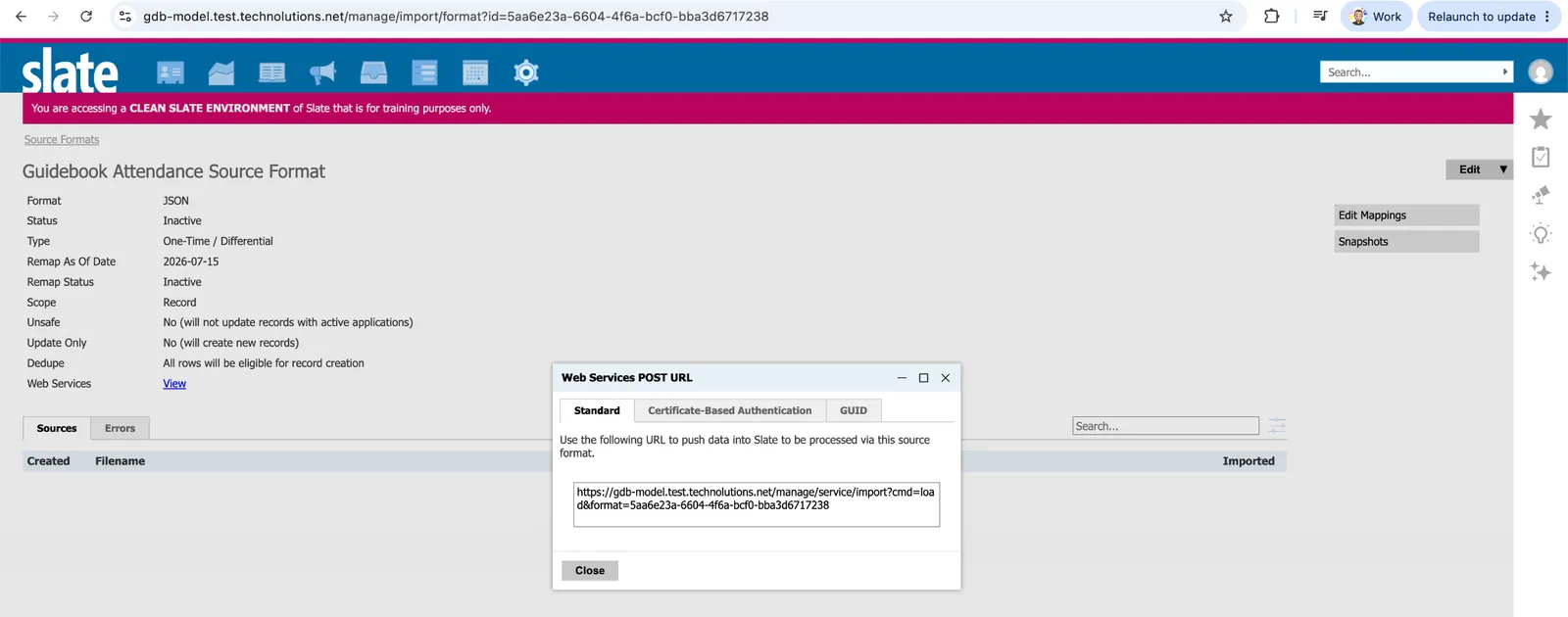
Back on the Source Format, click “View” next to Web Service to collect the Webservice URL, this will be needed later in the Builder configuration, please save it.
-
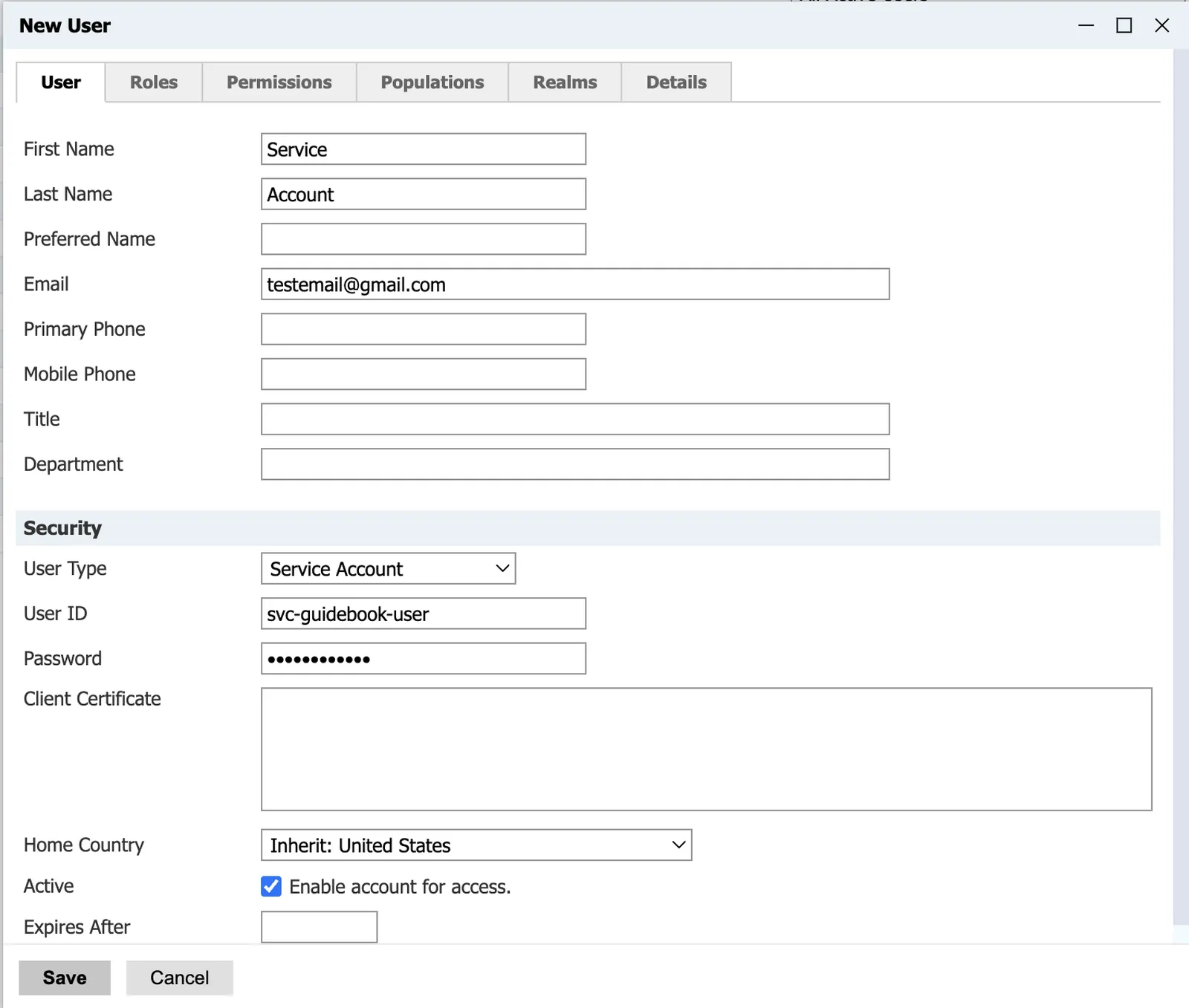
Next we will need to create/collect the credentials for a Slate Service account, click “New User” in the User Permissions tab. *NOTE* If you have already created the service account as per the instructions above, steps 7-9 are not necessary:

-
Fill out the following fields to create a Service User Account, please record the username and password as they will be used in Guidebook Builder. Note that if you select an expiry date you will have to re-do parts of this process once it expires.
-
A successful account creation will look like the below:

Setting Up the Slate Attendance Data Integration in Guidebook Builder
Now that you have your Slate web service URL, log in to Builder and open your guide's Integrations settings.
-
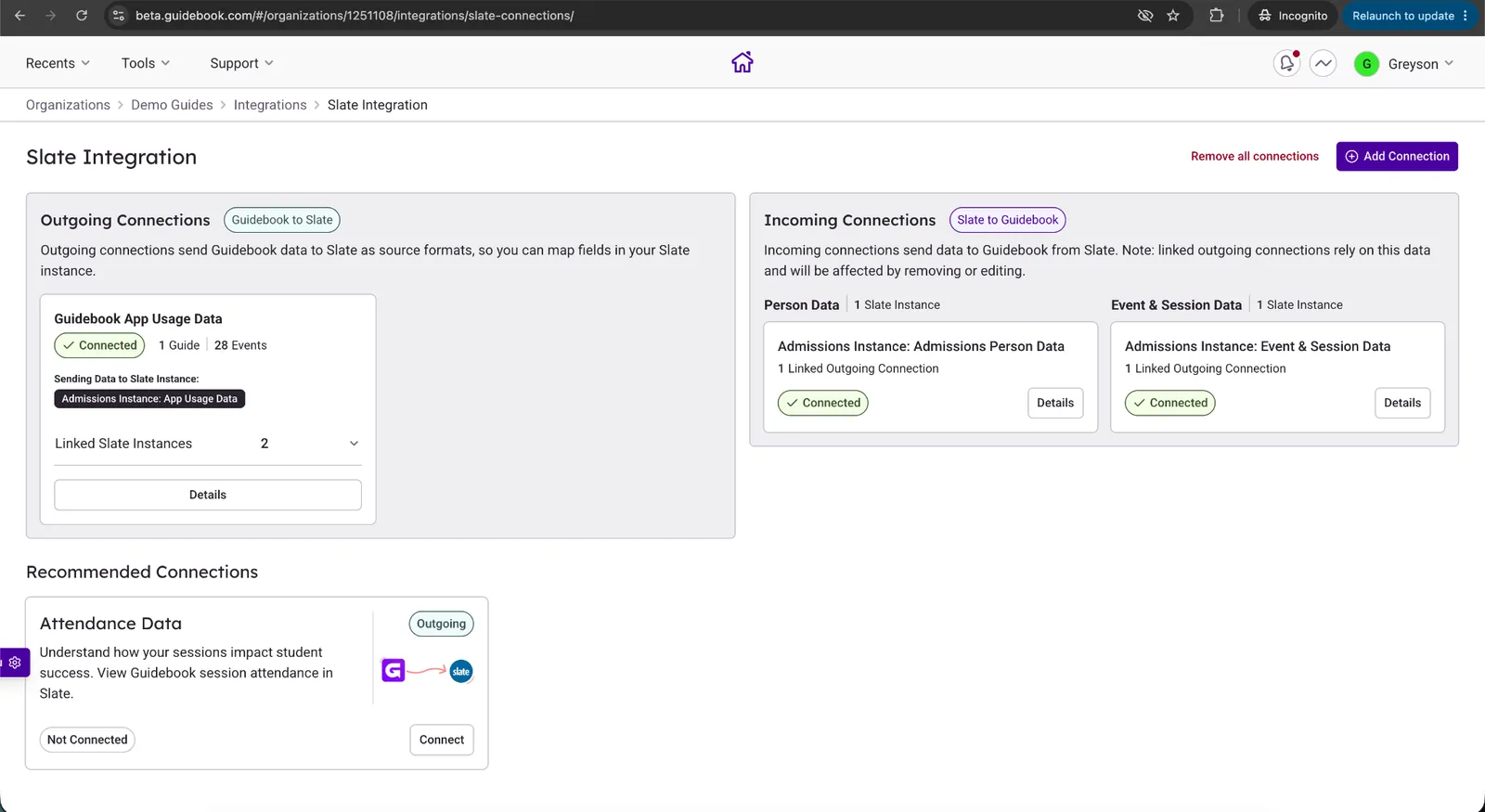
Find the Slate integration in your Organizations “Integrations” tab and click Set up. Choose Attendance Data, and press “Connect”
-
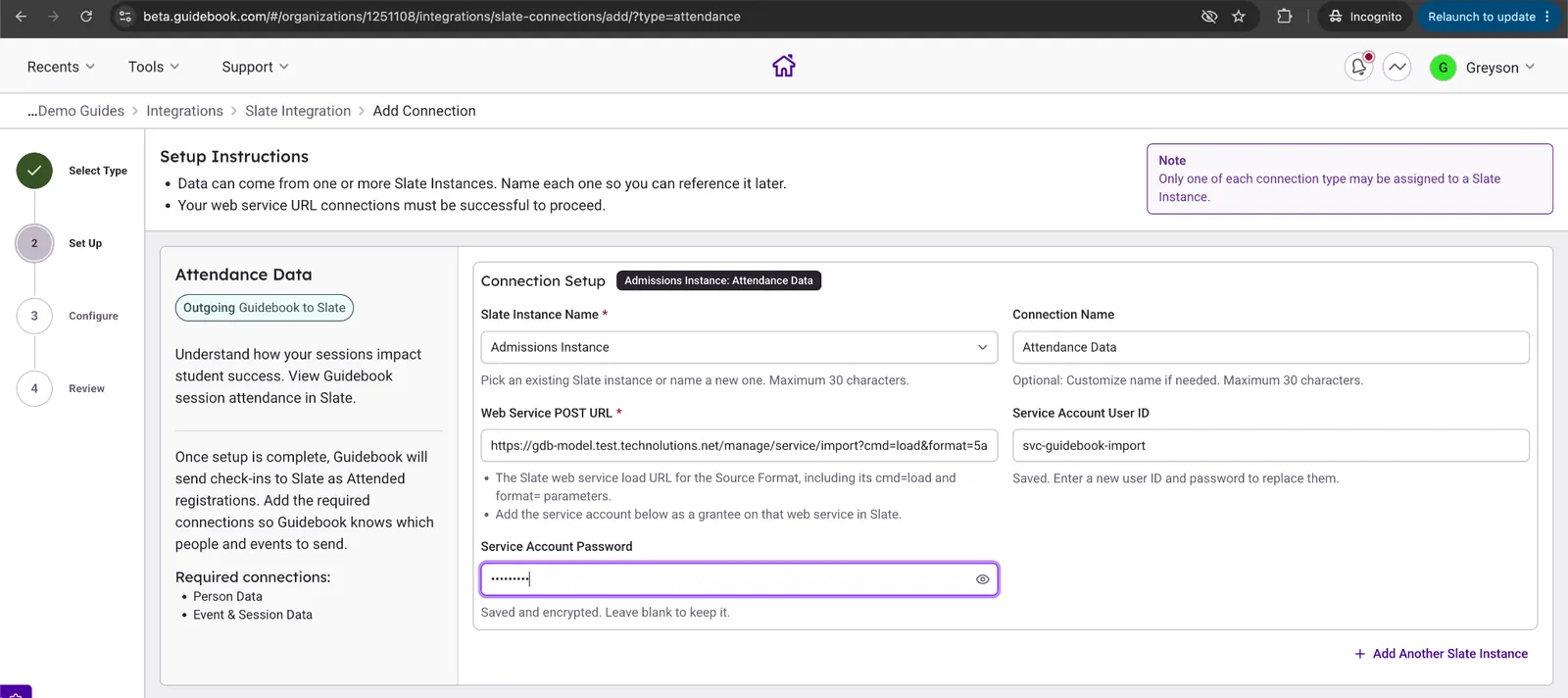
Paste in your Web service URL and Security key. Include the Service account username and password you noted earlier (DO NOT include your personal Slate account login credentials, this will not work)
-
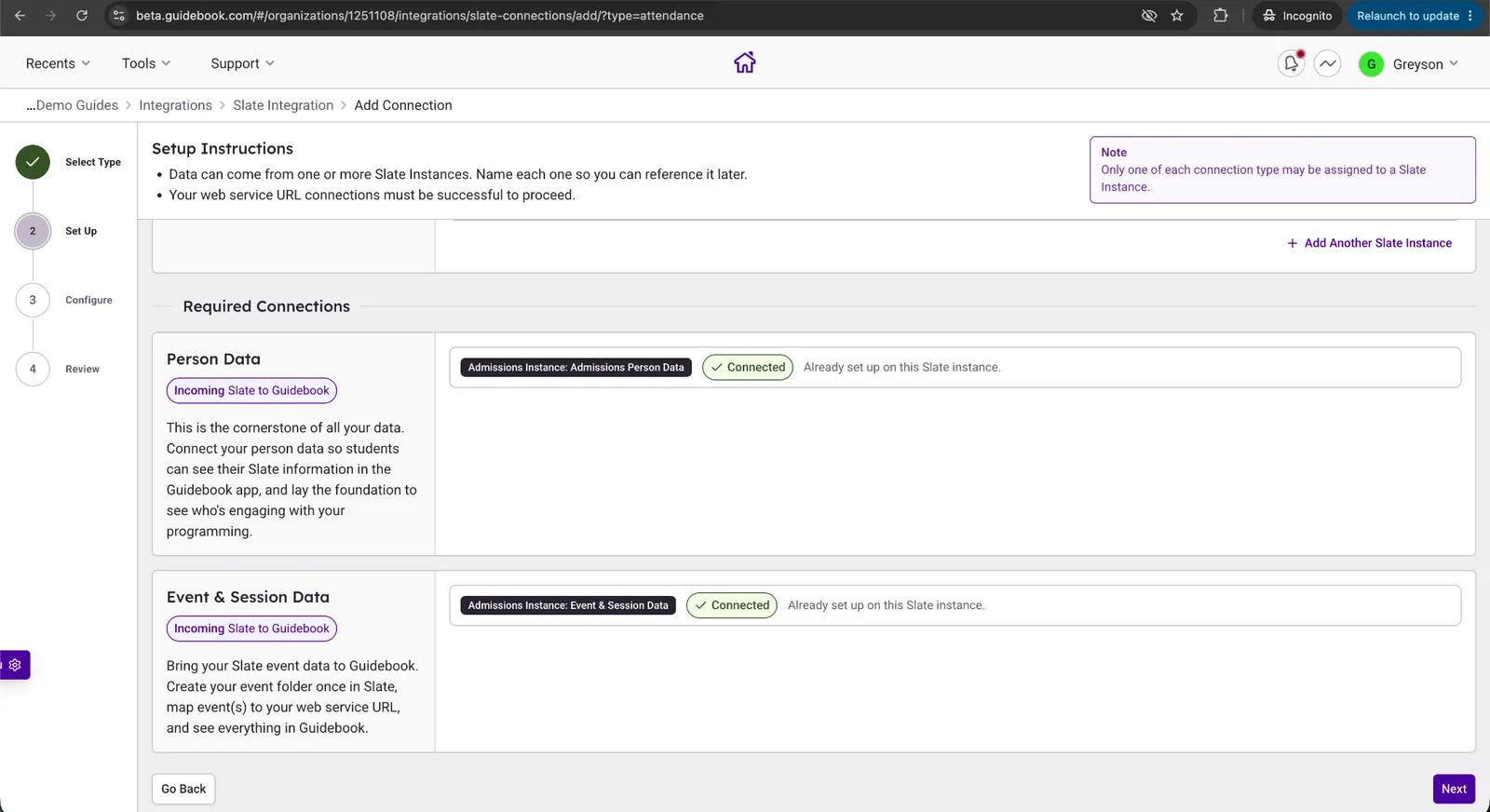
Please ensure that both the Person and Event & Session Data dependencies are connected and functional as below:
-
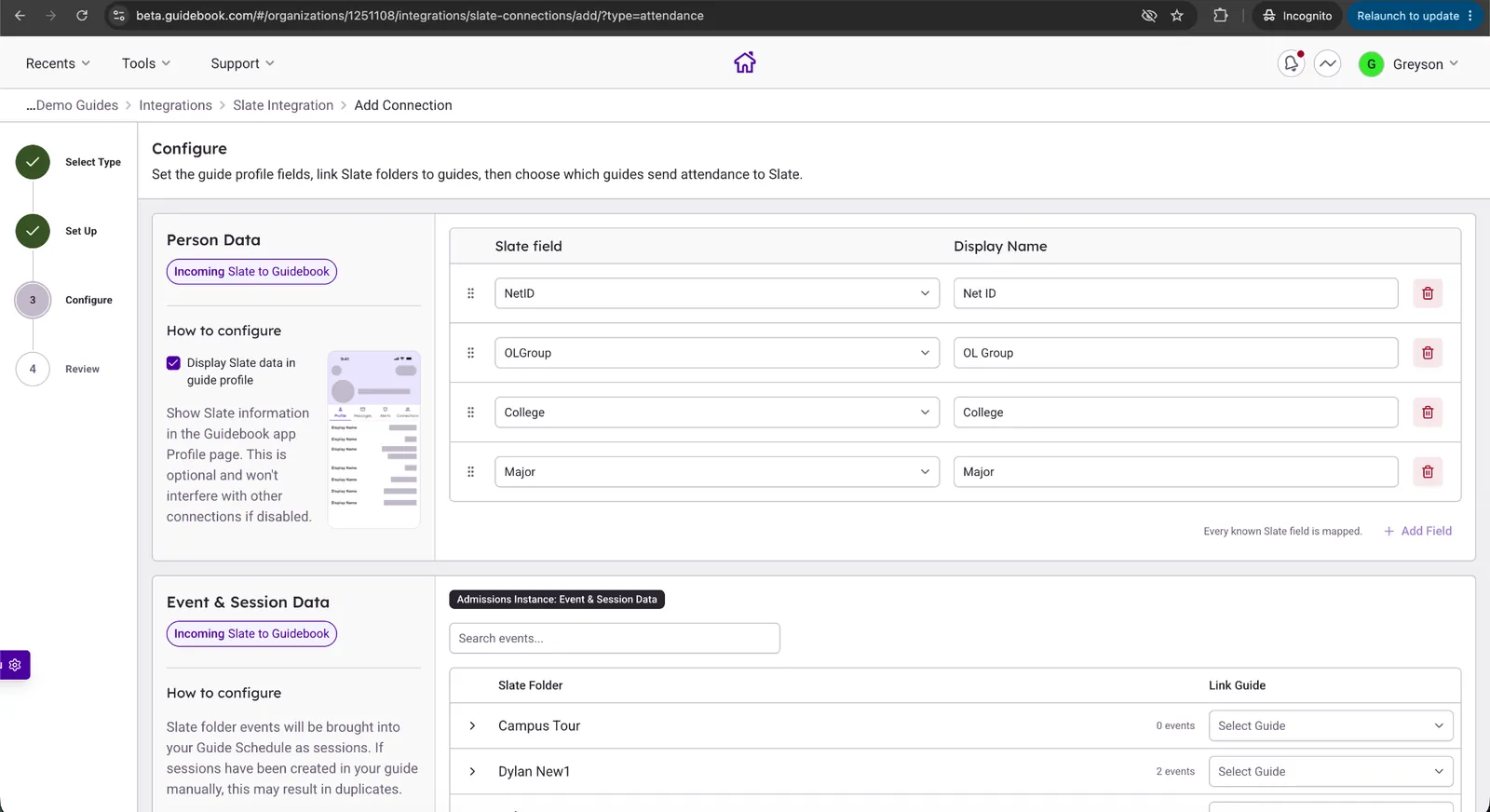
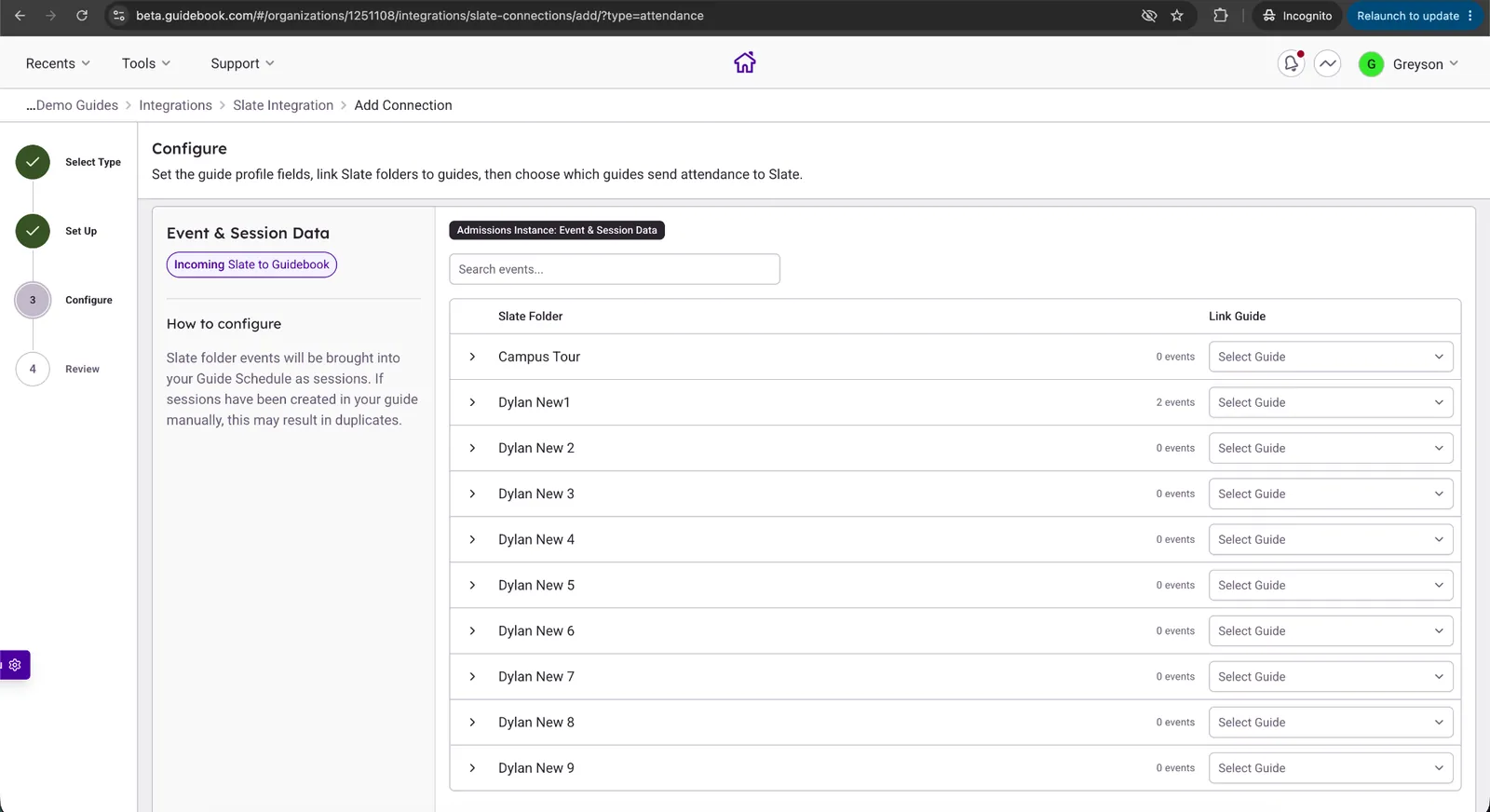
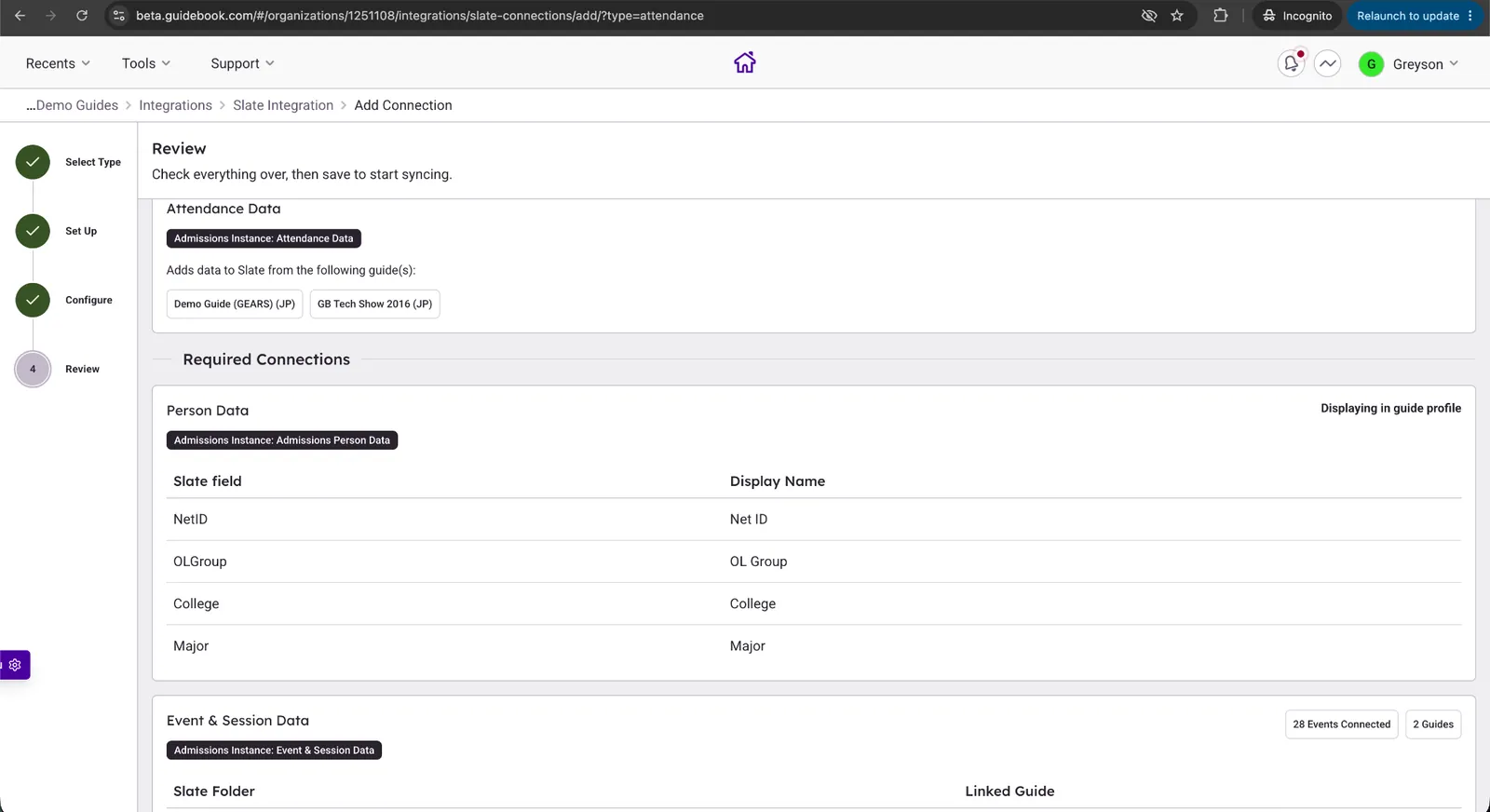
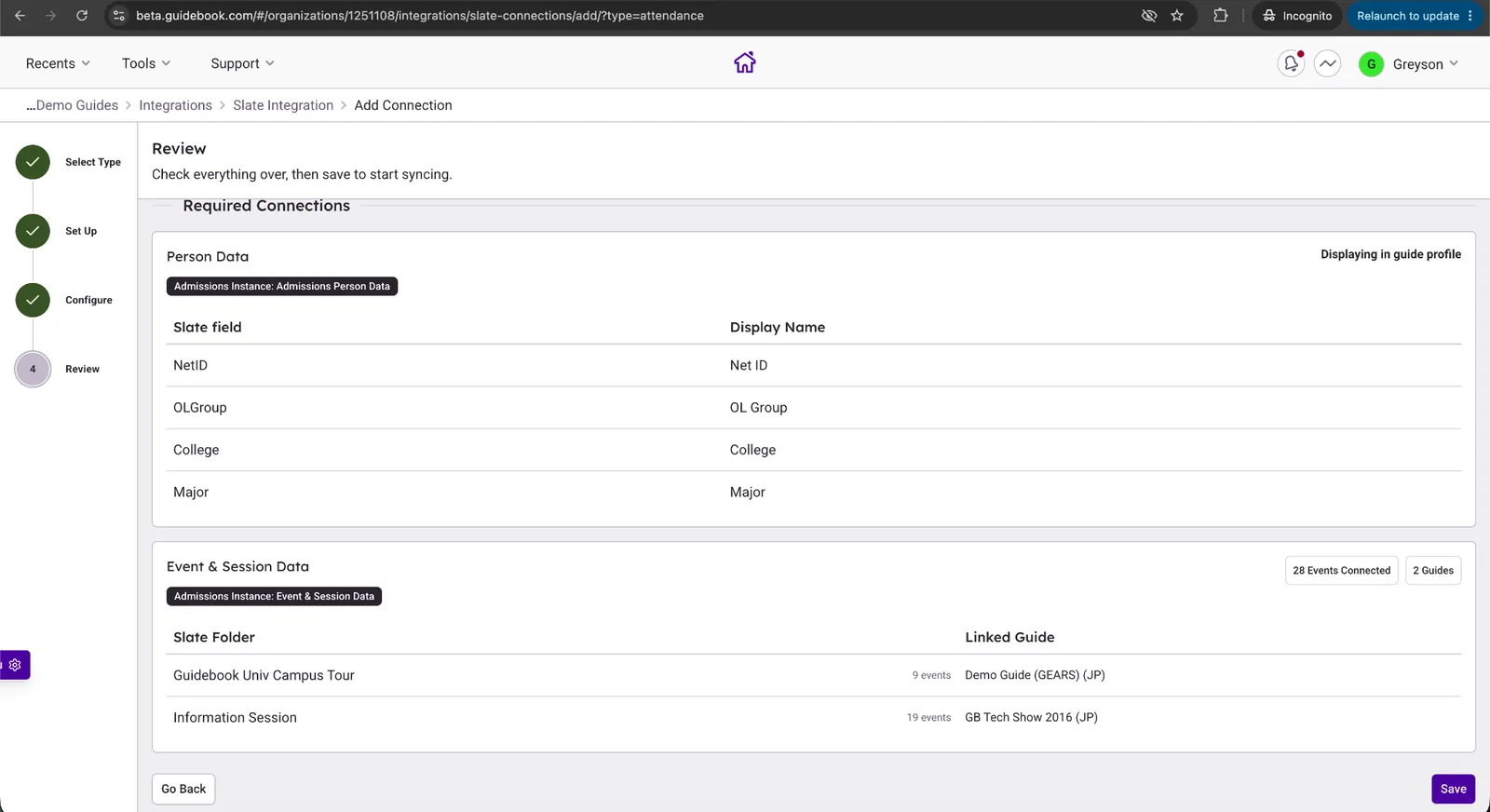
Ensure that the Person Data Connection and the Event & Session Data Connections have the mappings you want and expect for the Attendance Integration. Note that changing any mapping here changes the underlying map on that connection:
-
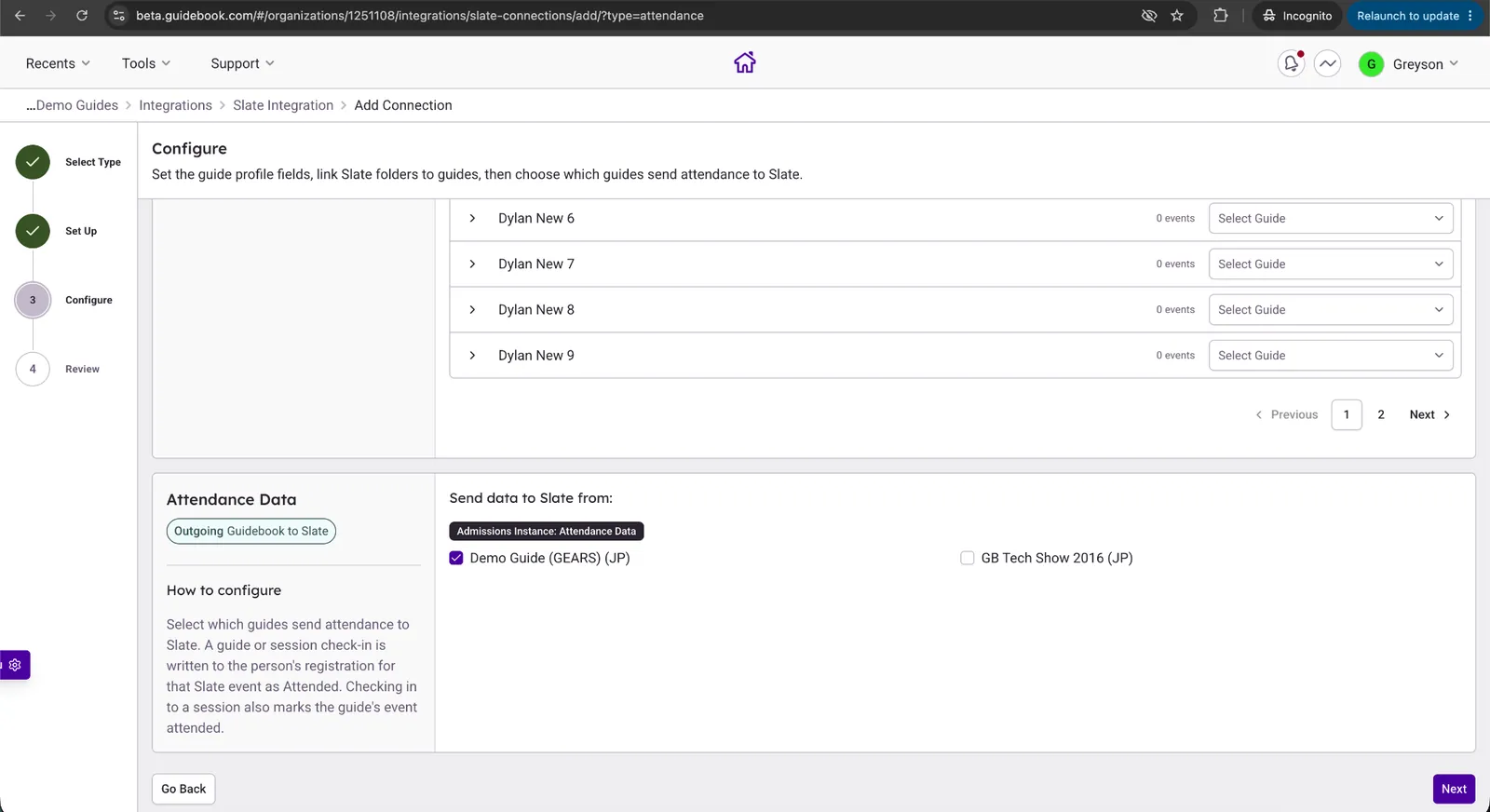
As the administrator, you also have the ability to select which guides are exporting Attendance data. In this example we see one enabled, one disabled. Proceed with “Next” when ready:
-
We are now ready to review the entire connection. Press “Save” or go back until satisfied with the configuration:
-
Rows will appear in your Source Format as below. Row entries that appear as 0/0 are periodic connection tests from Guidebook and will not alter data in the database:
-
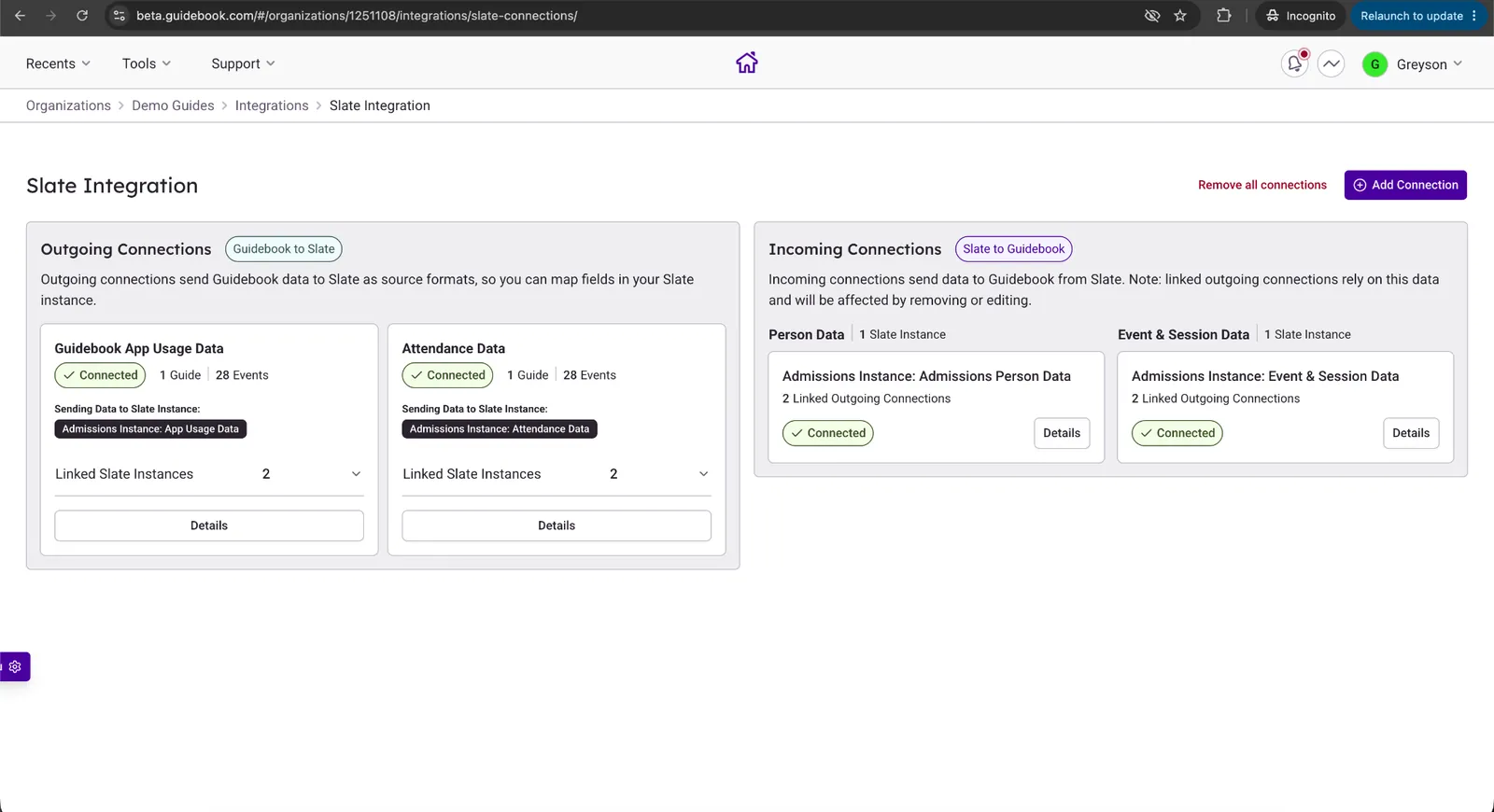
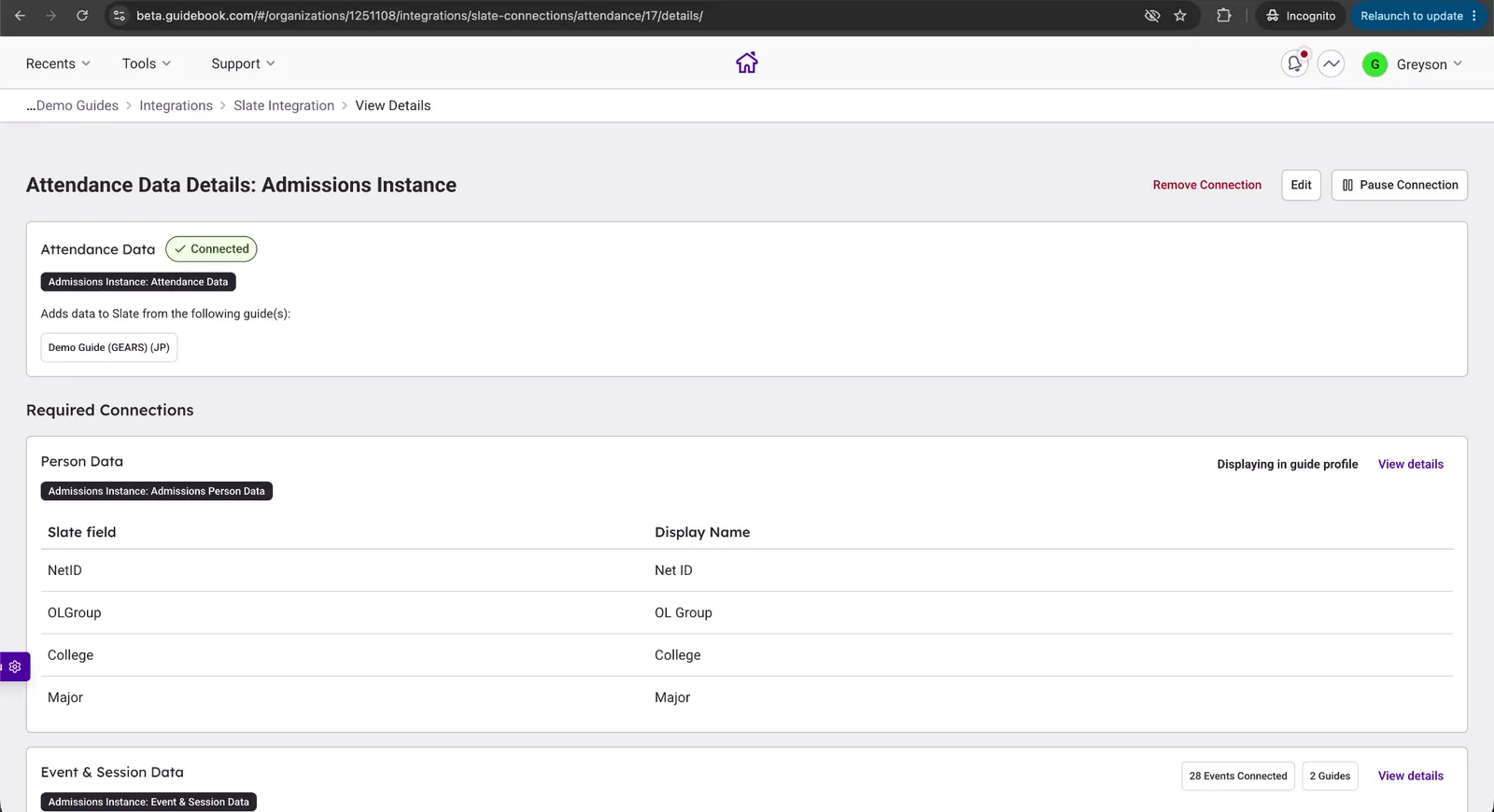
The final state of a configured Attendance Data connection will look like so:
Managing the Integration
Once the Slate Attendance Data integration is set up, Guidebook pushes data to your Slate web service regularly so you can see the Guidebook Attendance Data in Slate.
Please note that if you are looking for real-time metrics during an event, please look to the Attendance tab within Builder.
From the Integration settings you can:
- Update credentials: if your Slate URL or security key changes, update them here. Saving a new URL or key triggers an immediate re-sync.
- Pause the integration: stopping the flow of data from Guidebook to Slate
After it's connected
Update credentials or pause the integration, all from Builder.
Your data rules stay in place.
Slate stays the source of truth, and students decide whether their app activity is shared.
Opt-in only
App activity is sent only for logged-in students with a Slate record who said yes to the guide's privacy consent. No answer counts as no.
Rechecked every run
If a student withdraws consent, sending stops from that point on.
Protected guides stay out
Archived guides and guides with strict privacy turned on are never sent.
Slate owns the record
Student names and imported events are managed in Slate and stay in sync automatically.