
Personal schedules, ready in the app
Guidebook turns the sessions each student registers for in Slate into their own preset schedule, so it's waiting when they open the app.



Every student's schedule,
built for them.
Students open the app to the sessions they signed up for in Slate, and nobody builds those schedules by hand:
- A personal preset for every registered student
- New and cancelled registrations carried across on every sync
- Nothing reaches students until you publish
How presets are built
From a Slate registration to the student's schedule, in four steps.
What Slate controls, and what you can change
Slate leads on the sessions it adds. Everything else stays in your hands.
Setting it up
No extra Slate setup. A Builder organization admin turns presets on for each Slate Event Folder.
Prerequisites:
Before you can turn on Automated Presets, you will need the following already in place:
- Person Data integration, connected. Guidebook matches each Slate registrant to a Guidebook user by their Slate Person GUID, which comes from the Person Data web service.
- Event & Session Data integration, connected, with at least one Slate Event Folder mapped to a Guidebook Guide.
- An Engage (Premium) plan on each guide you want presets for. Preset schedules can only be published from Engage guides, so the option is unavailable for guides on other plans.
Slate Configuration
No additional Slate setup is needed. Registrations and session selections are already part of the Event & Session Query you imported with the Guidebook Event & Session Suitcase, so Automated Presets work from the same web service.
Setting Up Automated Presets in Guidebook Builder
Automated Presets are turned on for each Slate Event Folder, in the same place you map folders to guides.
-
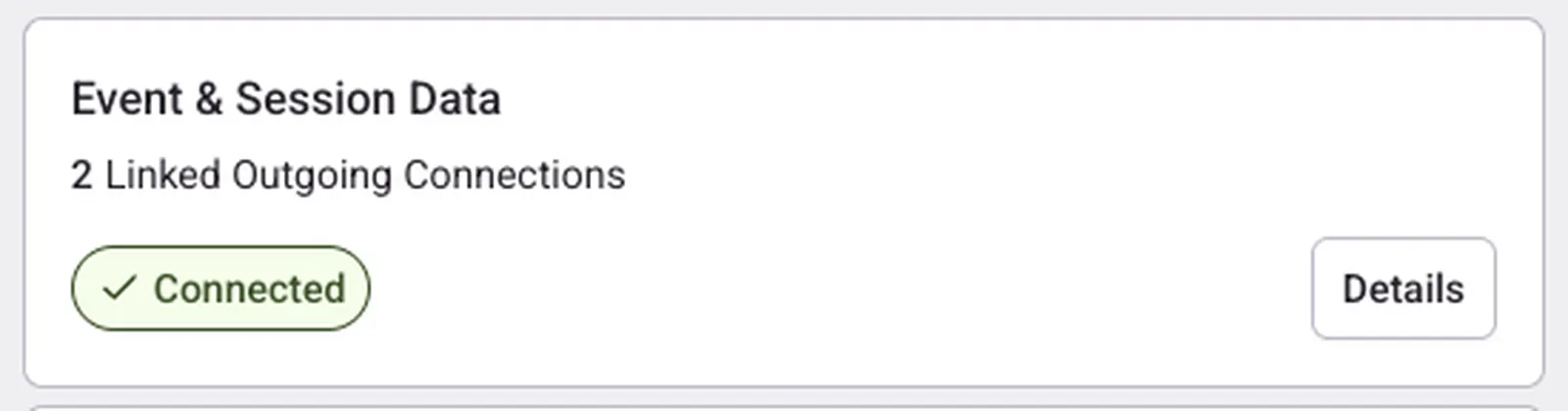
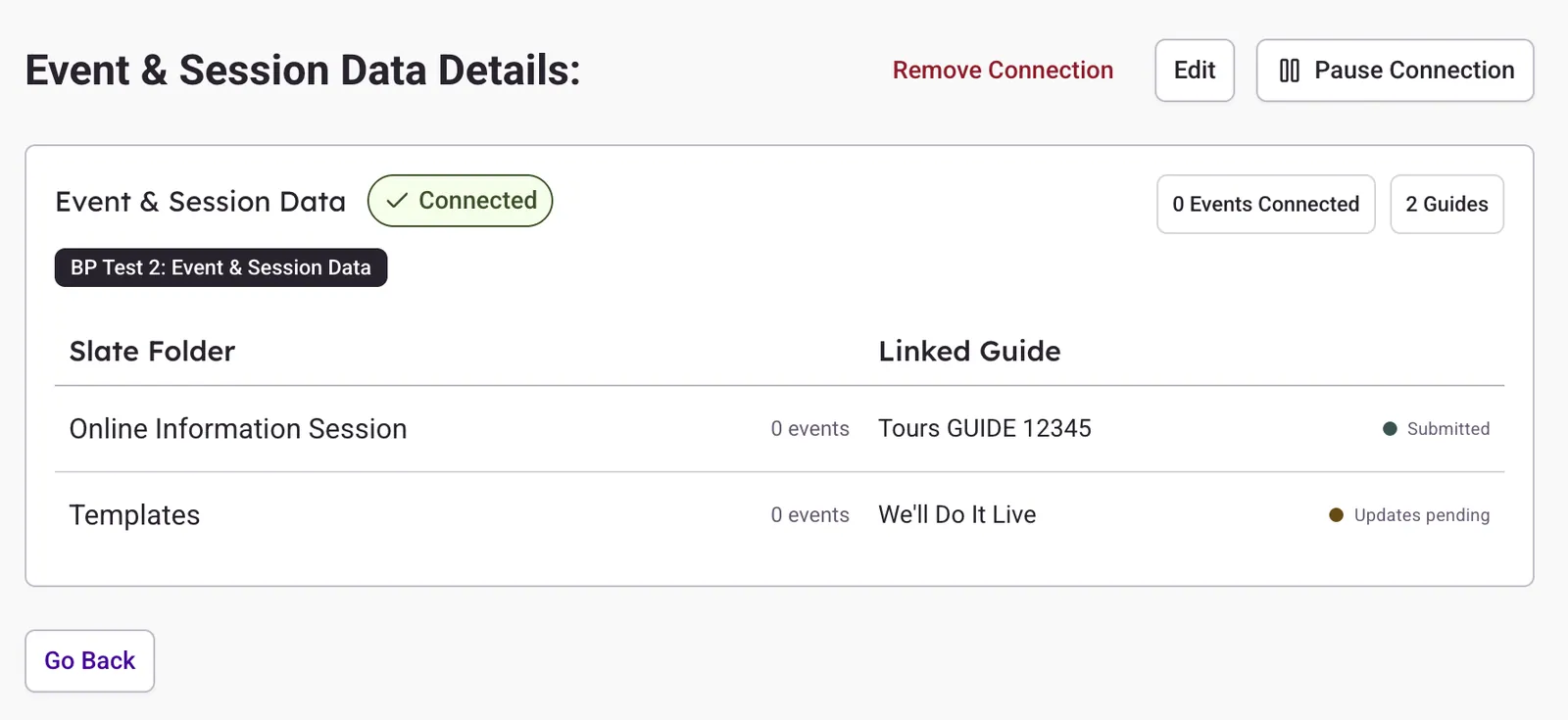
Find the Slate integration in your Organization's “Integrations” tab and open the Event & Session Data connection. If you are setting the integration up for the first time, follow the Event & Session Data steps above until you reach the folder mapping step. If it is already set up, click “Details” -> “Edit”.
-
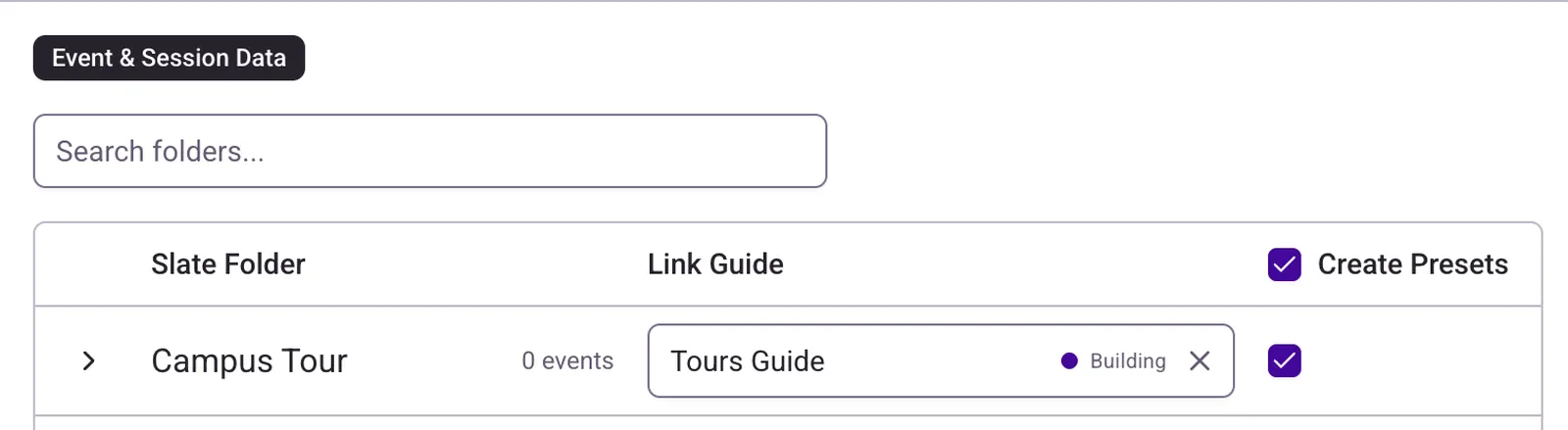
In the folder mapping table, find the “Create Presets” column to the right. Each folder linked to an Engage guide is ticked by default. Use the checkbox in the column header to select or clear all folders at once.
- If a folder's checkbox is disabled with the note “Guide must be upgraded to premium”, the guide it is linked to is not on an Engage plan. Upgrade the guide, or leave presets off for that folder.
- A folder must be linked to a guide before presets can be turned on for it.
-
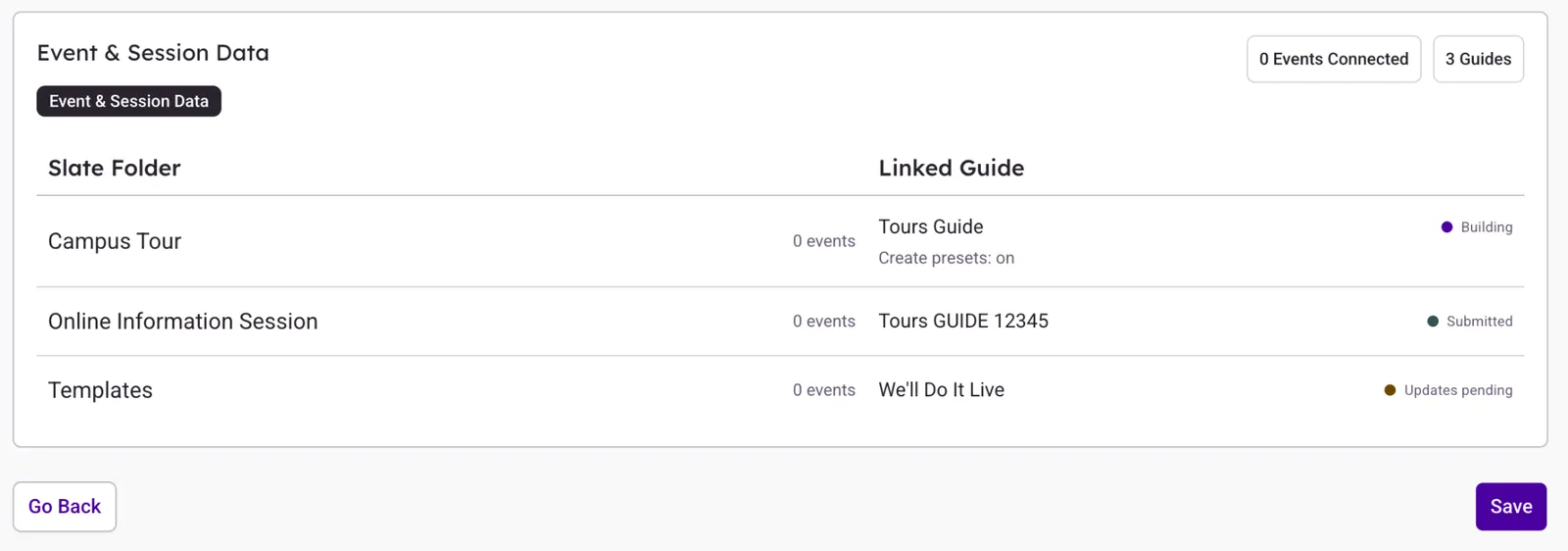
Click “Next” to review your setup. Each folder shows “Create presets: on” or “Create presets: off”. Click Save to apply, or go back to change anything.
-
Preset schedules are created on the next sync, which runs on the cadence you chose for the Event & Session Data connection (every 2 hours by default).
Note: if you later link a folder to a different guide, its “Create Presets” setting goes back to its default (on). Clear the box before saving if you want it off for the new guide.
Publishing Slate Presets
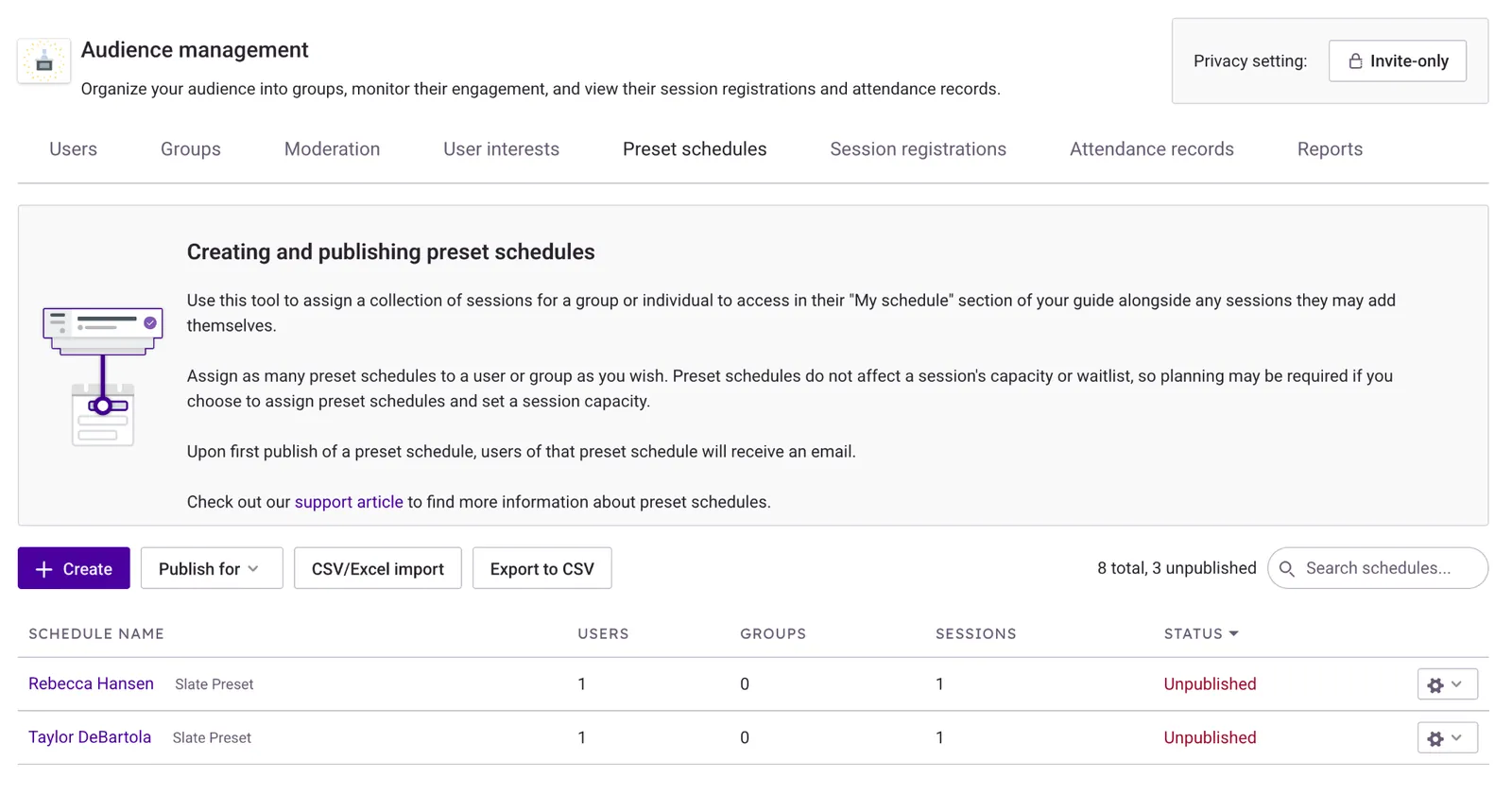
Guidebook builds and updates Slate presets, but does not publish them. New presets, and changes to existing ones, appear in the Preset Schedules list as unpublished changes. Publish them from the Preset Schedules page the same way you publish any preset schedule, and the sessions are added to each student's schedule in the app. Students do not receive the usual preset schedule email.
The one exception: when a preset is deleted because the student no longer has any registered sessions in Slate, its sessions are taken off the student's schedule right away, without waiting for a publish.
Viewing and Editing Slate Presets
Go to the guide's “Preset Schedules” page. Slate presets are marked with a “Slate Preset” tag and show the student's email next to their name.
Clicking a Slate preset opens a simplified page with the student's name, the “Slate Preset” label, their email, and the session table with the usual session filters.

Slate is the source of truth for these presets, so some parts are locked while Automated Presets are on:
- Sessions added by Slate show as checked and greyed out, and cannot be removed in Builder.
- Sessions you add by hand can be added and removed freely. Slate never removes a session it did not add.
- The student the preset was built for cannot be removed from it.
- The preset cannot be deleted while it holds sessions from Slate.
To remove a session, or a whole preset, cancel the student's registration in Slate. The change carries across on the next sync.
After it's setup
Publish changes, edit presets, or turn presets off for a folder.
Your data rules stay in place.
Slate stays the source of truth, and students decide whether their app activity is shared.
Opt-in only
App activity is sent only for logged-in students with a Slate record who said yes to the guide's privacy consent. No answer counts as no.
Rechecked every run
If a student withdraws consent, sending stops from that point on.
Protected guides stay out
Archived guides and guides with strict privacy turned on are never sent.
Slate owns the record
Student names and imported events are managed in Slate and stay in sync automatically.